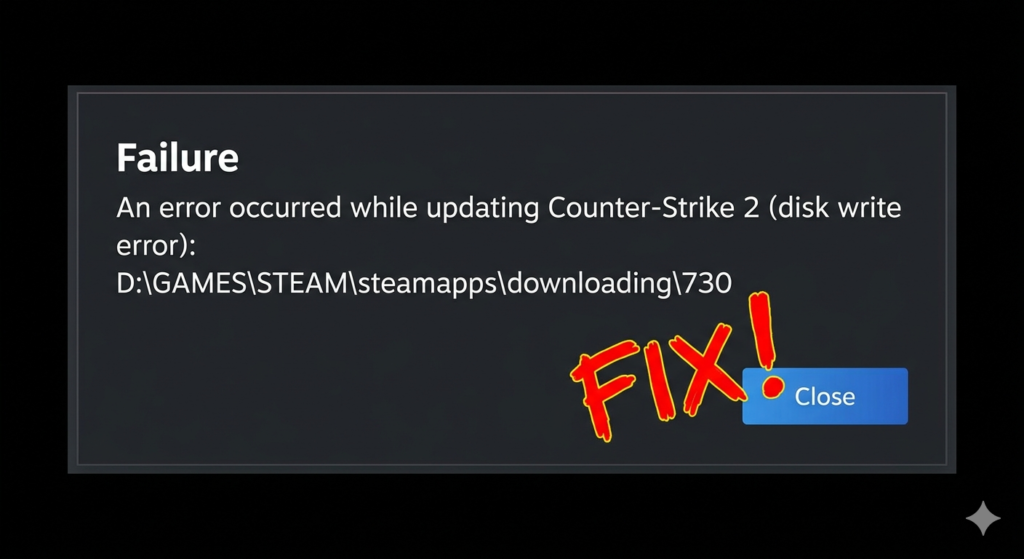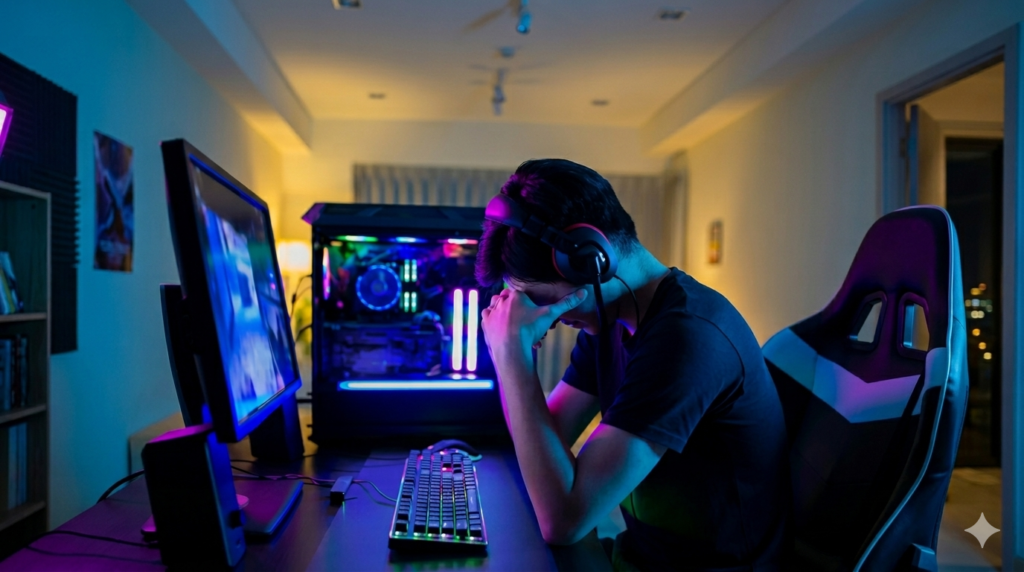
Nothing ruins a gaming session faster than slow internet. One moment your game runs smoothly, and the next moment you face lag, high ping, or sudden disconnects. These problems can make online games frustrating and hard to enjoy.
The good news is that many gaming internet issues are easy to fix. You do not always need expensive upgrades or expert help.Simple changes in your WiFi setup, router settings, or device can improve your gaming experience quickly.
In this article, you will learn how to fix common internet problems for gaming. We will cover lag, slow speed, connection drops, and high ping in simple steps that anyone can follow. Whether you play on PC, console, or mobile, these tips can help you get smoother and more stable gameplay.
Common Internet Problems Gamers Face
High Ping or Lag
- Ping is the time your game takes to send and receive data.
- High ping causes delays during gameplay.
- Your actions may respond slowly in online games.
- Lag can make games feel frustrating and hard to play.
- Characters may move slowly or suddenly teleport on the screen.
Example
You press a button to move or shoot, but the game reacts a few seconds later.
Packet Loss
- Packet loss happens when some game data does not reach the server properly.
- It can cause freezing, stuttering, or broken movement in games.
- Players may notice rubber banding during matches.
- Voice chat may also cut or sound unclear.
Slow Download Speed
- Games and updates take a long time to download.
- Large updates may need hours to finish.
- Slow speed can also affect game loading times.
- Streaming or downloading in the background can make it worse.
Random Disconnects
- The internet suddenly cuts during online matches.
- Weak WiFi signals often cause this problem.
- Old or overheating routers can also disconnect the connection.
- Random disconnects can remove players from games and ranked matches.
Check If the Problem Is Your Internet
Run a Speed Test
- Check your download speed, upload speed, and ping.
- Slow download speed can cause lag and long loading times.
- High ping can make online games respond slowly.
- You can use free speed test websites or apps.
Tip
Test your internet on both mobile and PC.If both devices are slow, the problem is likely your internet connection.
Check Other Devices
- See if other devices in your home also have slow internet.
- Ask family members if videos, apps, or websites load slowly.
- Too many connected devices can reduce gaming performance.
Example
If everyone in the house faces buffering or slow browsing, your internet may be overloaded.
Test Different Games
- Try playing different online games.
- Sometimes only one game server has problems.
- If one game lags but others work fine, the issue may not be your internet.
Tip
Check the game’s official server status page for outages or maintenance.
Restart Your Router and Device
Sometimes the easiest fix works the best. Routers can develop small network problems after running for many hours or days. This can lead to lag, slow speed, or random disconnects while gaming. Restarting the router refreshes the connection and removes temporary errors.
Restarting your gaming device also helps improve performance. PCs, consoles, and mobile phones may have background apps or network issues that affect online games.
Why Restarting Helps
- Clears temporary network problems
- Refreshes the internet connection
- Fixes small router errors
- Can reduce lag and disconnects
How to Restart Properly
- Turn off the router
- Wait at least 30 seconds
- Turn the router back on
- Wait for all lights to become stable
Restart Gaming Device Too
- Restart your PC
- Restart your console
- Restart your mobile device
- Close unnecessary background apps
Move Closer to the WiFi Router
Weak WiFi signals are a common reason for gaming lag and slow internet. The farther you are from the router, the weaker the signal becomes. Walls, doors, and large furniture can also block WiFi signals and reduce connection quality. This often causes high ping, lag spikes, or sudden disconnects during online matches.
Placing your router in the right location can improve gaming performance. A strong and stable signal helps games run more smoothly and reduces connection problems.
Why Distance Affects Gaming
- WiFi signals become weaker over long distances
- Walls and furniture can block the signal
- Weak signals may cause lag and disconnects
- Online games need a stable connection for smooth gameplay
Best Router Placement
- Place the router in an open area
- Keep it in a higher position
- Avoid placing it behind furniture
- Keep it away from thick walls and metal objects
Example
Gaming in another room may cause lag spikes because the WiFi signal becomes weak.
Use Ethernet Instead of WiFi
WiFi is convenient, but it is not always the best option for gaming. Wireless signals can become unstable because of distance, interference, or too many connected devices. Ethernet uses a cable connection, which provides faster and more reliable internet for online games.
Many professional and competitive gamers prefer Ethernet because it reduces lag and keeps the connection stable during matches.
What Is Ethernet?
- Ethernet is a wired internet connection
- It connects your device directly to the router using a cable
- It provides a more stable connection than WiFi
Why Ethernet Is Better for Gaming
- More stable internet connection
- Lower ping during online matches
- Fewer lag spikes
- Less chance of random disconnects
Tip
Ethernet is the best choice for competitive and fast-paced online games.
Reduce Internet Usage in the Background
Background internet use can slow your gaming speed without you noticing. When other apps or devices use the same internet, your game gets less bandwidth.
This can cause lag, high ping, or slow response during matches. Reducing extra usage helps your game get a stronger and more stable connection.
Close Apps Using Internet
- Close apps that use data in the background
- Stop downloads while gaming
- Exit streaming apps like YouTube or Netflix
- Close unused browser tabs
Stop Automatic Updates
- Turn off Windows automatic updates during gaming
- Pause game updates while playing
- Disable app updates in background settings
- Schedule updates for off-peak time
Limit Devices on WiFi
- Too many devices slow down internet speed
- Disconnect devices not in use
- Avoid heavy usage like streaming or large downloads on other devices
- Share bandwidth fairly at home
Example
Someone watching 4K videos on the same WiFi can increase lag in your online game and make your character respond slowly.
Update Network Drivers and Router Firmware
Keeping your network updated helps your internet run better for gaming. Updates fix small bugs and improve connection stability. They can also reduce lag, ping spikes, and random disconnects during online matches.
Old drivers or outdated router software can slow your internet without warning. Updating them keeps your system fresh and more stable for games.
Why Updates Matter
- Fix bugs in the network system
- Improve internet speed and stability
- Reduce lag and ping spikes
- Help games run smoother online
How to Update Network Drivers
- Open Device Manager on Windows
- Find “Network Adapters”
- Right-click your WiFi or Ethernet driver
- Click “Update driver”
- Follow simple on-screen steps
Update Router Firmware
- Firmware is the router’s internal software
- It controls how your router works
- Old firmware can cause slow or unstable internet
- Updating it improves performance and fixes issues
Change DNS Settings
DNS is like a phone book for the internet. It helps your device find the correct game server or website. When you open an online game, DNS connects you to the server you need. If DNS is slow, your game may take longer to start or load matches. This can feel like lag before the game even begins.
Popular DNS Options
- Google DNS – 8.8.8.8 / 8.8.4.4
- Cloudflare DNS – 1.1.1.1 / 1.0.0.1
These DNS options are fast and reliable. Many gamers use them to improve connection speed and reduce delays.
How DNS Can Help Gaming
- Faster connection to game servers
- Less delay when joining matches
- More stable online gameplay
- Sometimes better ping stability
Beginner Tip (Easy Setup Steps)
- Save settings and restart your connection.
- Open network settings on your device
- Go to WiFi or Ethernet settings
- Find DNS settings option
- Enter DNS numbers (Google or Cloudflare)
Fix High Ping While Gaming
Choose Nearby Game Servers
- Closer servers give lower ping
- Select the nearest region in game settings
- Helps reduce delay in online matches
- Improves smooth gameplay and response time
Avoid Peak Internet Hours
- Internet can become slow at busy times
- Night time often has more users online
- This can increase ping and lag
- Play during less busy hours for better speed
Pause Downloads While Gaming
- Stop all downloads before playing
- Saves internet bandwidth for your game
- Reduces lag and ping spikes
- Keeps connection stable during matches
Example
Ping becomes lower when downloads are stopped during gameplay
Router Problems That Affect Gaming
Old Routers
- Older routers may not support modern games well
- They can cause slow speed and unstable connection
- Upgrading router can improve gaming performance
Overheating Router
- Router can heat up after long use
- Overheating can cause slow internet or disconnects
- Turn off router sometimes to cool it down
Weak Router Signal
- Weak signals cause lag and disconnects
- Common when far from router or many walls in between
- May need better placement or new router
Contact Your Internet Provider
Sometimes the problem is not your device or settings. If you try all fixes and the issue still stays, then your internet provider may be the reason. They can check outages, line issues, or speed problems from their side.
It is important to ask simple questions when you contact them. This helps you understand if your internet plan is good for gaming or not.
When to Call ISP ?
- Problem continues after all fixes
- Internet keeps disconnecting
- High ping stays the same
- Internet is slow on all devices
Questions to Ask
- Is there any outage in my area?
- Is my speed good for gaming?
- Is there a line issue?
- Why is my ping high?
Ask About Gaming-Friendly Plans
- Ask for low-latency plans
- Check faster internet options
- Upgrade if needed for better gaming
Best Internet Settings for Gaming
- Recommended speed for online gaming: basic stable internet is enough for most games
- Ideal ping for gaming: under 50ms is usually good
- Best connection type: Ethernet is better than WiFi for stable gameplay
- WiFi vs Ethernet: Ethernet gives lower lag, WiFi is flexible but less stable
- Simple idea: faster and stable connection = smoother gaming experience
Best Internet Settings for Gaming
Recommended Speed for Online Gaming
- Basic stable internet is enough for most games
- You do not always need very high speed
- Stability matters more than speed
Ideal Ping for Gaming
- Under 50ms is usually good
- Lower ping means faster response in games
- High ping can cause lag and delay
Best Connection Type
- Ethernet is better than WiFi for gaming
- WiFi is easy but less stable
- Wired connection gives smoother gameplay
Gaming Internet Tips for Different Devices
PC Gaming Tips
- Update drivers regularly
- Close background apps using internet
- Keep system clean for better speed
Console Gaming Tips
- Works for PS5, Xbox, and Nintendo Switch
- Use Ethernet if possible
- Keep console near router for strong signal
Mobile Gaming Tips
- Use strong WiFi connection
- Avoid weak mobile data
- Close apps running in background
Common Mistakes Gamers Make
- Playing far from router causes weak signal and lag
- Downloading while gaming uses internet speed and increases lag
- Ignoring router updates can make connection slow and unstable
- Using cheap or old routers cannot handle modern gaming needs
- Have you made any of these mistakes before?
Conclusion
In this article we looked at simple ways to fix internet problems for gaming. Most issues like lag, high ping, and disconnects can be solved with easy steps at home. Start with the basic fixes first, because they often work fast and save time.
Restart your router, reduce background internet use, and try using an Ethernet cable for a more stable connection. These small changes can greatly improve your gaming experience.
If problems still continue, then it may be time to upgrade your router or your internet plan for better speed and stability.
Which fix worked best for your gaming setup?
FAQS
Why is my internet good but games still lag?
Your internet may be fast, but it is not always stable. High ping, packet loss, or background apps can still cause lag during gaming.
Does Ethernet really improve gaming?
Yes, Ethernet improves gaming. It gives a stable connection, lowers ping, and reduces lag compared to WiFi.
Can a router cause high ping?
Yes, an old or weak router can increase ping. Overheating or bad placement can also make your connection slow.
How often should I restart my router?
Restart your router once a week. It clears small errors and helps keep your internet stable for gaming.
What internet speed is best for gaming?
Gaming does not need very high speed. A stable connection with low ping is more important than fast download speed.
Why do games disconnect suddenly?
Games can disconnect due to weak WiFi, router issues, or too many devices using the same internet.
Can DNS improve gaming performance?
Yes, DNS can help improve connection speed to game servers. It may reduce small delays in online games.
Is WiFi good enough for competitive gaming?
WiFi can work, but it is not always stable. Ethernet is better for competitive gaming because it reduces lag and keeps connection strong.