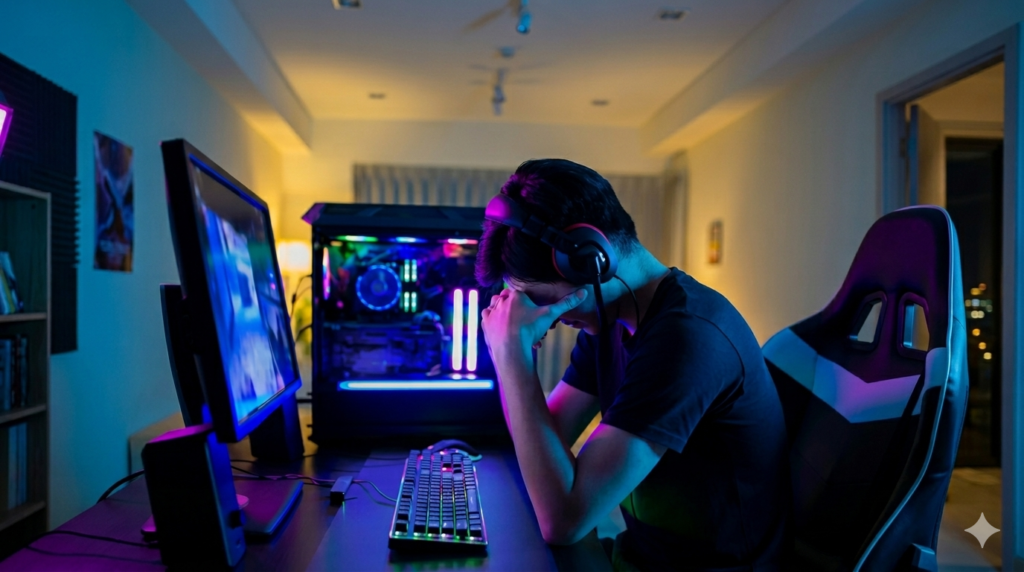
Your PC may turn on normally, but the screen stays black, which can feel confusing and frustrating. This usually happens due to simple issues like loose cables, RAM not fitted properly, GPU errors, or power and motherboard problems. The good thing is that you don’t need advanced skills to fix it.
This article will help you find the problem step by step with easy checks you can do at home. It focuses on simple solutions so you can fix your PC without stress or confusion.
Basic Checks First (Easy Fixes)
Check Monitor Power
- Make sure the monitor is turned ON
- Check if the power light is showing
- Confirm the power cable is properly connected
- Try plugging it into a different power socket if needed
Check Cable Connection
- Make sure HDMI or DisplayPort cable is tightly connected
- Unplug and plug the cable again to refresh the connection
- Try using another cable if you have one
- Check both ends (PC side and monitor side)
Check Input Source
- Open monitor settings using the input button
- Select the correct source like HDMI or DisplayPort
- Do not leave it on “Auto” mode if display is not showing
- Try switching between inputs one by one until screen appears
RAM Issues
RAM is your PC’s short-term memory. It helps your system run programs and load data fast. Without working RAM, your PC cannot properly show anything on the screen.
It works like a small working space for your computer. If this space has a problem, the system cannot start display properly.
How RAM Causes No Display
- Loose RAM stops the PC from booting properly
- Dust or dirt in RAM slots can block connection
- Faulty RAM stick can stop display completely
- PC may turn on, but screen stays black
Fix Steps
- Turn off your PC and unplug power
- Open the PC case carefully
- Remove RAM sticks slowly
- Clean RAM and slots gently
- Reinstall RAM firmly in place
- Try one RAM stick at a time to test
Example
If you have two RAM sticks and one is faulty, your PC may not show any display until you remove the bad one.
Graphics Card (GPU) Problems
The GPU is the part of your PC that handles all visuals. It takes data from your computer and sends it to the monitor as images, videos, and graphics. If the GPU has a problem, your PC can still turn on normally, but the screen will stay black because no display signal is sent.
Common GPU Issues
- GPU is not properly fixed in the PCI slot
- Power cable is loose or not connected
- Dust is blocking the connection point
- GPU is damaged or not working properly
Fix Steps
- Turn off your PC and unplug power first
- Remove the GPU carefully from the slot
- Clean the slot and GPU gently if needed
- Reinsert the GPU firmly and properly
- Check and connect all GPU power cables
- Test using motherboard display port if possible
Example
Your PC turns on, fans are running, but nothing shows on the screen. This often happens when the GPU is not properly connected or has stopped working correctly.
BIOS / CMOS Reset
BIOS is the basic system that starts your computer when you press the power button. It controls how all hardware parts work during startup. If BIOS settings become wrong or corrupted, your PC may fail to show any display even if everything else is fine.
Why Reset Helps
- It improves chances of normal boot after failure
- It removes wrong or corrupted BIOS settings
- It fixes startup errors that block display
- It restores default factory settings
- It helps the system detect hardware correctly again
- It can solve hidden configuration issues
How to Reset CMOS
- Turn off your PC and unplug it from power
- Open the PC case carefully
- Remove the small CMOS battery from the motherboard
- Wait for 3 to 5 minutes
- Put the battery back in the same place
- Turn on your PC again and check display
Power Supply Issues (PSU)
The power supply unit gives electricity to every part of your PC like CPU, motherboard, and GPU. If the PSU is weak or failing, your PC may turn on, but it will not send proper power to show display on the screen.
Signs of PSU Problem
- PC fans spin but screen stays black
- System keeps restarting again and again
- PC turns on but does not load anything
- Random shutdowns during startup
Basic Check
- Try using another power supply if available
- Check all internal power cables carefully
- Make sure every connector is tightly fixed
- Look for any loose or damaged wires
Motherboard and CPU Checks
If you have tried all other solutions and still get no display, the motherboard may be the problem. This usually happens when the system powers on but does not respond or show any output.
Basic Inspection Steps
- Check all internal cables and connections
- Look carefully for physical damage or burn marks
- Make sure the CPU is properly seated in its socket
- Check for bent CPU pins if your motherboard supports it
- Ensure nothing is loose inside the system
Beep Codes and LED Indicators
Beep codes and LED lights are warning signals from your motherboard. They tell you if something is wrong during startup. Each sound or light pattern points to a different hardware problem.
How to Use Them
- Listen carefully for beep sounds when PC starts
- Check LED lights on motherboard for error signs
- Match the signals with your motherboard manual
- Identify the faulty part based on the error code
- Use this information to fix the correct component
Preventing the Problem in Future
Simple Maintenance Tips
- Clean your PC regularly to remove dust
- Check all cables often to make sure they are tight
- Keep your system cool and avoid overheating
- Place your PC in a clean and open space
- Make sure air vents are not blocked
Safe Usage Habits
- Do not force any hardware parts inside the PC
- Handle RAM, GPU, and cables carefully
- Keep your system and drivers updated
- Shut down your PC properly after use
- Avoid unnecessary opening of PC case without reason
Conclusion
Most of the time, a PC that turns on but shows no display has simple causes. The issue usually comes from loose RAM, GPU problems, or cable connection errors. These are common hardware issues that can stop the screen from showing anything even when the PC is running.
Always start with the easiest fixes first, like checking cables and monitor input. Then move step by step toward RAM, GPU, and power supply checks. This slow and simple approach helps you find the real problem without confusion or damage.
Which step helped you fix your PC issue? Let us know and share your experience so others can learn too.
FAQS
Why does my PC turn on but show no display?
This usually happens due to loose cables, RAM issues, GPU problems, or power supply faults. The PC is getting power, but the display signal is not reaching the monitor.
Can RAM cause a black screen?
Yes, faulty or loose RAM can stop your PC from showing any display. The system may power on, but it cannot complete the boot process.
Is GPU the main reason for no display?
GPU is one of the common reasons. If it is not seated properly or not getting power, the screen will stay black even if the PC is running.
How do I know if PSU is faulty?
If your PC turns on but restarts again and again, or shows no display even after checking other parts, the PSU may be weak or damaged.
Can a bad cable stop display completely?
Yes, a damaged or loose HDMI/DisplayPort cable can fully stop the display signal from reaching the monitor
Can motherboard problems cause no display?
Yes, if the motherboard has an issue, the PC may power on but fail to send any display output.
What should I check first when no display happens?
Start with monitor power, cable connection, and input source. These are the easiest and most common fixes.
Can dust cause no display issue?
Yes, dust in RAM slots, GPU slot, or ports can block proper connection and cause display failure.