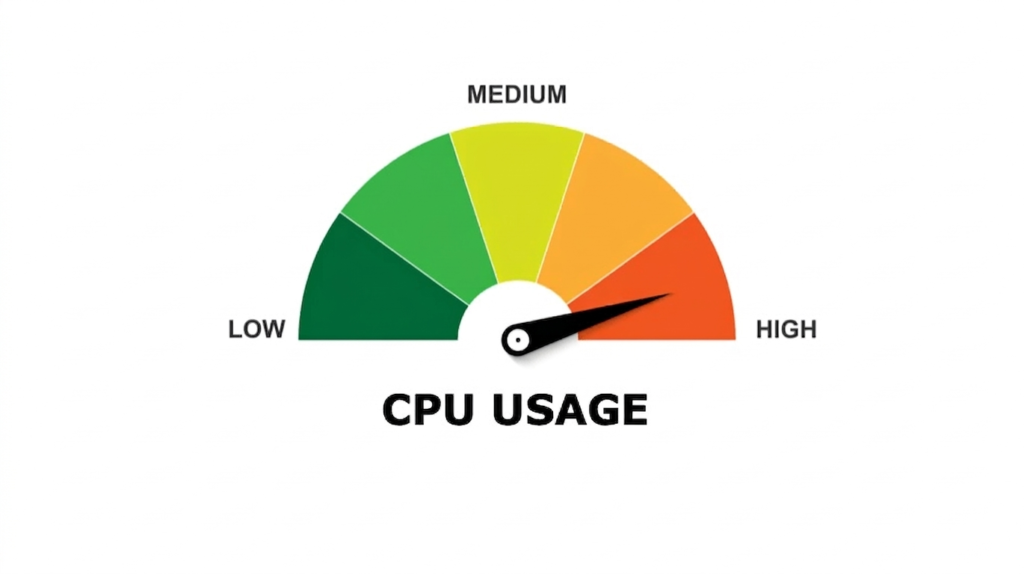
Is your computer running slow while your antivirus works in the background?
High CPU usage by antivirus software can cause lag, loud fan noise, freezing programs, and poor gaming performance.
Antivirus programs use CPU power to scan files and protect your computer from threats. Sometimes these scans, updates, or background tasks use too many system resources, especially on older PCs or laptops.
The good news is that this problem is usually easy to fix. In this article, you will learn simple ways to reduce antivirus CPU usage and make your computer run faster and smoother again.
Common Signs Your Antivirus Is Using Too Much CPU
Check Task Manager
- Open Task Manager in Windows
- Press
Ctrl + Shift + Escon your keyboard - Click on the “Processes” tab
- Look for your antivirus program
- Check the CPU percentage beside it
Signs to Watch
- CPU usage stays above 70–90%
- Computer becomes hot quickly
- Laptop fan runs loudly
- Apps open very slowly
- Games or videos start lagging
- Mouse or keyboard responds slowly
- Programs freeze or crash sometimes
Quick Tip
- Temporary high CPU usage during a scan is normal
- Constant high CPU usage usually means there is a problem that needs fixing
Main Reasons Antivirus Uses High CPU
Real-Time Protection
- Antivirus stays active in the background all the time
- It checks every file you open or download
- This constant checking uses CPU power and can slow your PC
Full System Scans
- Scans all files and folders on your computer
- Uses heavy CPU resources during the process
- Can slow down older or low-end systems
Scheduled Scans at Bad Times
- Antivirus starts scans automatically
- Often runs during gaming, studying, or working
- Causes sudden lag and slowdown
Antivirus Software Bugs
- Old antivirus versions may have errors
- Bugs can increase CPU usage
- Outdated software performs poorly
Too Many Security Programs
- More than one antivirus causes conflict
- Both programs scan the same files
- This increases CPU load and slows the system
Low RAM or Old Hardware
- Weak processors struggle with antivirus tasks
- Low RAM makes performance worse
- CPU usage becomes high even during normal use
Example
A low-end laptop with 4GB RAM may slow down badly during antivirus scans
How to Fix High CPU Usage by Antivirus
Restart Your Computer
Restarting your computer is the easiest and fastest fix. It helps clear small system errors and stops background tasks that may be stuck.
Many times, antivirus gets stuck in a loop and keeps using CPU even when it is not needed. A simple restart resets everything and brings performance back to normal.
Keypoints
- Clears temporary system errors
- Stops stuck background tasks
- Fixes small performance issues
- Reduces sudden CPU spikes
Example
If your laptop suddenly becomes slow while browsing or gaming, a quick restart often brings it back to normal speed.
Update Your Antivirus Software
Updating your antivirus is very important because old versions can cause high CPU usage. Developers release updates to fix bugs, improve speed, and make scanning more efficient. I
f your antivirus is not updated, it may use more resources than needed and slow down your system.
Keypoints
- Fixes software bugs
- Improves performance and speed
- Reduces unnecessary CPU usage
- Keeps protection strong and updated
Example
Antivirus tools like Microsoft Defender Antivirus, Avast Antivirus, and Bitdefender often run smoother after installing the latest updates.
Change Scan Schedule
Antivirus scans can heavily slow down your computer if they run at the wrong time. If scans start while you are working, gaming, or studying, your system may lag or freeze.
Setting scans at the right time helps you avoid these problems and keeps performance stable.
Keypoints
- Runs scans at better times
- Avoids lag during work or gaming
- Reduces system interruptions
- Improves overall performance
Example
If a scan starts during an online class or game, your PC may become very slow and unresponsive.
Reduce Real-Time Scanning Load
Real-time scanning protects your system by checking files instantly. However, this continuous checking can increase CPU usage, especially on low-end PCs.You can reduce this load by excluding trusted folders or safe files from scanning.
Keypoints
- Reduces continuous CPU usage
- Improves system speed
- Lowers background load
- Keeps essential protection active
Example
Excluding a trusted game folder or software folder can make gaming smoother and reduce lag.
Disable Unnecessary Antivirus Features
Many antivirus programs come with extra tools that are not always needed. These features run in the background and can increase CPU usage. Turning off unused features helps your system run faster without affecting basic protection.
Keypoints
- Reduces extra system load
- Improves overall speed
- Stops unnecessary background activity
- Keeps only important protection enabled
Example
Disabling unused features like VPN tools or browser protection can make your PC feel faster.
Remove Other Security Programs
Having more than one antivirus installed is a common mistake. When two antivirus programs run together, they scan the same files at the same time. This creates conflicts and increases CPU usage heavily, making your computer slow.
Keypoints
- Prevents software conflicts
- Stops double scanning
- Reduces CPU usage
- Improves system stability
Example
Using both Avast and McAfee on the same PC can significantly slow down performance.
Scan for Malware
Sometimes malware is the real reason behind high CPU usage. Viruses and unwanted programs can run in the background and use system resources without your knowledge. A full antivirus scan helps detect and remove these hidden threats.
Keypoints
- Removes hidden viruses
- Stops background CPU usage
- Improves system stability
- Restores normal performance
Example
A hidden virus can make your computer slow even when you are not doing anything.
Upgrade Computer Hardware
Old hardware often struggles with modern antivirus programs. Low RAM or slow hard drives can increase CPU pressure. Upgrading your system improves overall speed and reduces performance issues caused by antivirus scanning.
Keypoints
- Improves multitasking
- Reduces system lag
- Speeds up scanning process
- Boosts overall performance
Example
Upgrading from HDD to SSD can make an old PC feel much faster and more responsive.
Reinstall the Antivirus
Reinstalling your antivirus can fix many hidden issues. Sometimes program files become corrupted or updates do not install properly. A fresh installation resets everything and improves performance.
Keypoints
- Fixes corrupted files
- Removes software glitches
- Improves stability
- Refreshes antivirus performance
Example
If your antivirus keeps slowing down your PC, reinstalling it can often solve the problem quickly.
Best Antivirus Settings for Better Performance
Use Smart Scan Options
- Use quick scan instead of full scan daily
- Run full scan only once a week
- Choose smart or recommended scan mode
- Avoid unnecessary deep scans
- Keep scanning time short to reduce CPU load
Turn On Gaming Mode
- Many antiviruses have gaming mode
- It reduces background activity during games
- Stops pop-ups and alerts temporarily
- Improves gaming performance
- Helps reduce CPU usage while playing
Limit Background Activity
- Reduce unnecessary startup apps
- Stop antivirus from heavy background tasks
- Disable extra auto-scanning features if not needed
- Keep only essential protection active
- Improves overall system speed
When You Should Change Your Antivirus
Signs Your Antivirus Is Too Heavy
- Constant system lag
- High CPU usage every day
- Frequent freezing or slowdowns
- Slow startup and shutdown
- System becomes hot often
Lightweight Antivirus Options
- Microsoft Defender Antivirus
- Bitdefender
- AVG AntiVirus
Extra Tips to Keep CPU Usage Low
- Keep Windows updated to improve performance and fix bugs
- Close background apps you are not using
- Clean temporary files to free system resources
- Restart your PC regularly to reset system load
- Avoid downloading unsafe files that may slow your system
Common Mistakes to Avoid
- Disabling antivirus completely, which puts your PC at risk
- Ignoring updates, which can cause bugs and high CPU usage
- Installing multiple antivirus apps, which creates conflicts and slowdowns
- Downloading fake “PC booster” tools that can harm your system
Conclusion
High CPU usage by antivirus can slow down your computer, but it is easy to fix. Most problems can be solved by updating your antivirus, changing scan settings, removing extra security tools, or upgrading your hardware if needed.
Always keep your antivirus turned on for protection. The goal is to balance speed and safety so your PC runs smoothly.
Which antivirus slows your PC the most? Try these fixes and see what works best for you.
FAQS
Why is my antivirus using 100% CPU?
High CPU usage can happen during full system scans, software bugs, or if malware is active in the background. Sometimes outdated antivirus versions also cause this problem.
Can antivirus slow down gaming?
Yes, antivirus can slow down games when it runs background scans or real-time checks. This can cause lag and lower FPS during gameplay.
Is high CPU usage by antivirus normal?
Yes, it is normal for a short time during scans. But if CPU stays high all the time, it may indicate a problem.
Which antivirus uses the least CPU?
Lightweight antivirus programs usually perform better on older systems. Options like Microsoft Defender Antivirus or Bitdefender are often smoother.
Should I disable real-time protection?
No, you should not disable it. Real-time protection keeps your computer safe from viruses and threats.
Can low RAM cause antivirus lag?
Yes, low RAM can make your system slow. Antivirus needs memory to run properly, and weak hardware increases CPU usage.
Does restarting fix antivirus CPU problems?
Yes, sometimes restarting helps. It clears temporary errors and stops stuck background processes.
Is Windows Defender enough for normal users?
Yes, for most users it is enough if Windows is updated and used safely with good browsing habits.