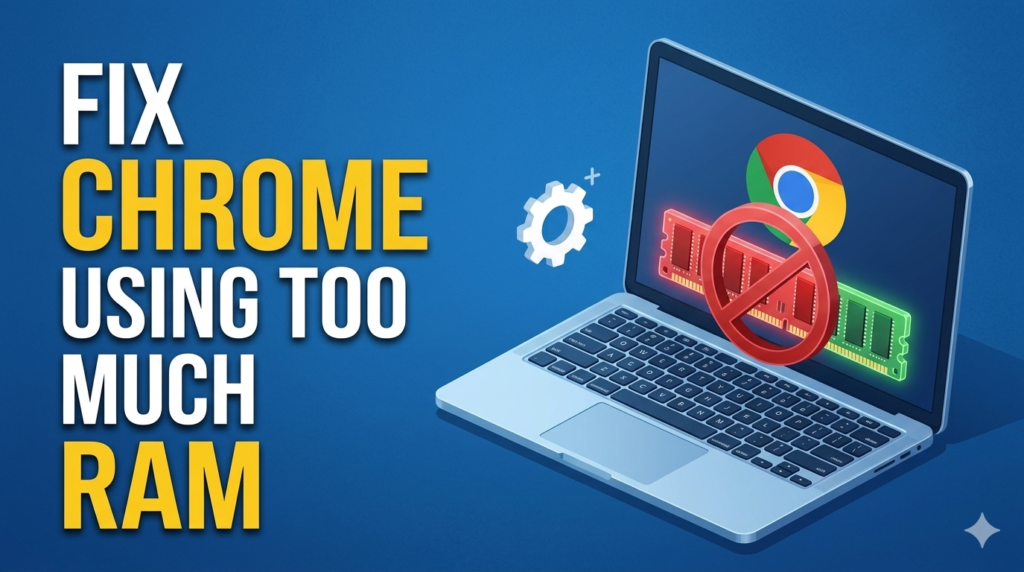
Google Chrome is a fast and popular browser, but it can sometimes use too much RAM and make your device slow or unresponsive. This high memory usage affects your overall system performance, slows down browsing, and can interrupt your work or study. It may also drain your laptop battery faster and cause other apps to lag.
In this article, you will learn simple and easy methods to reduce Chrome’s RAM usage. All steps are beginner-friendly, require no technical skills, and can quickly improve your browsing speed and system performance.
Why Chrome Uses Too Much RAM
Multiple tabs system
- Each tab runs separately in Chrome
- More tabs means more RAM usage
- This can slow down your device
- It increases overall memory load
Extensions running in background
- Extensions stay active all the time
- They use RAM even when not in use
- Some extensions run without notice
- This reduces browser speed
Heavy websites
- Some websites use high memory to run
- Video and social media sites use more RAM
- Example: YouTube and Facebook
- These sites slow down low-RAM devices
Background processes
- Chrome keeps running hidden tasks
- These processes stay active after closing
- They continue using system memory
- This affects overall performance
How to Fix Chrome High RAM Usage
Close unused tabs
Keep only the tabs you really need. Every open tab uses RAM and slows your device. Closing extra tabs instantly improves speed. Use bookmarks to save pages for later instead of keeping them open.
Keypoints:
- Each tab uses RAM
- Fewer tabs = faster Chrome
- Use bookmarks for later saving
Example:
You have 12 tabs open while studying. You only need 3. Close the rest and Chrome becomes faster.
Tip:
Try to keep under 6 tabs for smooth performance.
Remove unnecessary extensions
Extensions can run in the background and use memory without you noticing. Go to Chrome settings and open the Extensions section. Remove tools you do not use anymore. This helps free up RAM and makes Chrome faster.
Keypoints:
- Extensions use background memory
- Unused tools slow Chrome
- Removing them improves speed
Example:
A coupon extension stays active all the time but you never use it. Removing it frees RAM.
Turn on Memory Saver mode
Memory Saver is a built-in Chrome feature. It reduces RAM usage by putting inactive tabs to sleep. This helps your browser stay fast even when many tabs are open. It works automatically in the background.
Keypoints:
- Built-in Chrome feature
- Sleeps inactive tabs
- Saves RAM automatically
Example:
You open a YouTube tab but don’t use it for a while. Chrome pauses it to save memory.
Clear cache and cookies
Cache and cookies store old browsing data. Over time, this data can slow Chrome down. Clearing it removes unnecessary files and improves speed. It also helps pages load fresh and faster.
Keypoints:
- Removes old stored data
- Improves loading speed
- Frees browser memory
Example:
A website loads slowly because old data is saved. After clearing cache, it loads faster.
Tip:
Do this every 2–3 weeks for best performance.
Update Chrome browser
Old Chrome versions may have bugs and performance issues. Updating Chrome fixes memory problems and improves speed. It also adds new features that help reduce RAM usage.
Keypoints:
- Fixes bugs and issues
- Improves performance
- Adds new optimizations
Example:
After updating Chrome, pages open faster and lag reduces.
Disable background apps
Chrome can keep running even after you close it. These background apps use RAM without you knowing. Turning this off helps save system memory and improves overall device speed.
Keypoints:
- Stops hidden processes
- Saves system RAM
- Improves device performance
Example:
You close Chrome, but it still runs in background. Turning this off stops extra memory use.
Use Chrome Task Manager
Chrome Task Manager shows which tabs or extensions use the most RAM. You can close heavy tabs directly from there. This gives you better control over memory usage.
Keypoints:
- Shows RAM usage per tab
- Helps find heavy processes
- Easy way to close them
Example:
A video tab is using too much memory. You close it from Task Manager to speed up Chrome.
Tip:
Press Shift + Esc to open it quickly.
Restart Chrome or device
Restarting clears temporary memory and stops hidden processes. It gives Chrome a fresh start and improves performance instantly. This is a quick fix when Chrome becomes very slow.
Keypoints:
- Clears temporary memory
- Stops hidden tasks
- Gives fresh performance boost
Example:
After long browsing, Chrome becomes slow. Restarting it makes it smooth again.
Extra Tips to Keep Chrome Fast
Use lightweight browsing habits
- Avoid opening too many tabs at the same time
- Close videos when you are not watching them
- Keep only useful pages open
- This reduces RAM load and improves speed
Use fewer extensions
- Keep only important extensions
- Remove tools you rarely use
- Extra extensions slow down Chrome
- Fewer extensions = better performance
Check system RAM
- Low RAM devices struggle with Chrome
- Close other apps while browsing
- Upgrade RAM if your device is very slow
- More RAM helps Chrome run smoothly
Conclusion
Chrome uses RAM mainly because of open tabs, active extensions, and background processes. These factors can slow down your browsing and affect your device performance. The good news is that you can fix it easily with simple steps.
Close extra tabs, remove unused extensions, turn on Memory Saver, and clear cache regularly to keep Chrome fast and smooth. Small regular maintenance makes a big difference in speed and performance.
What do you think slows your Chrome the most—too many tabs or too many extensions?
FAQS
Why does Chrome use so much RAM?
Chrome uses more RAM because it runs each tab and process separately. This keeps browsing fast and stable, but it increases memory usage.
Is high RAM usage dangerous?
No, it is not dangerous. But it can slow down your device and make other apps lag.
Which extensions use the most RAM?
Extensions like ad blockers, video download tools, and tracking tools often use more RAM because they run in the background.
Does clearing cache improve speed?
Yes. Clearing cache removes old files and helps Chrome load pages faster and smoother.
Is Memory Saver safe?
Yes. Memory Saver is a built-in Chrome feature. It safely reduces RAM usage by pausing inactive tabs.
How do I know Chrome is using too much RAM?
Your device may become slow, tabs may freeze, or switching between pages may lag.
Can too many tabs slow Chrome?
Yes. Every tab uses RAM. More tabs mean less performance and more lag.
Does restarting Chrome help?
Yes. Restarting clears temporary memory and stops hidden processes, making Chrome faster again.