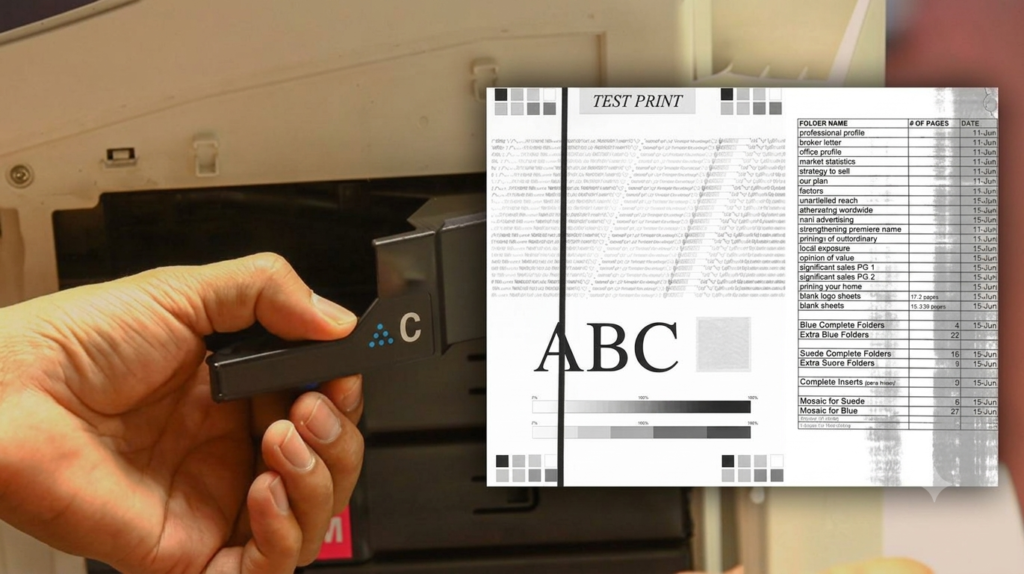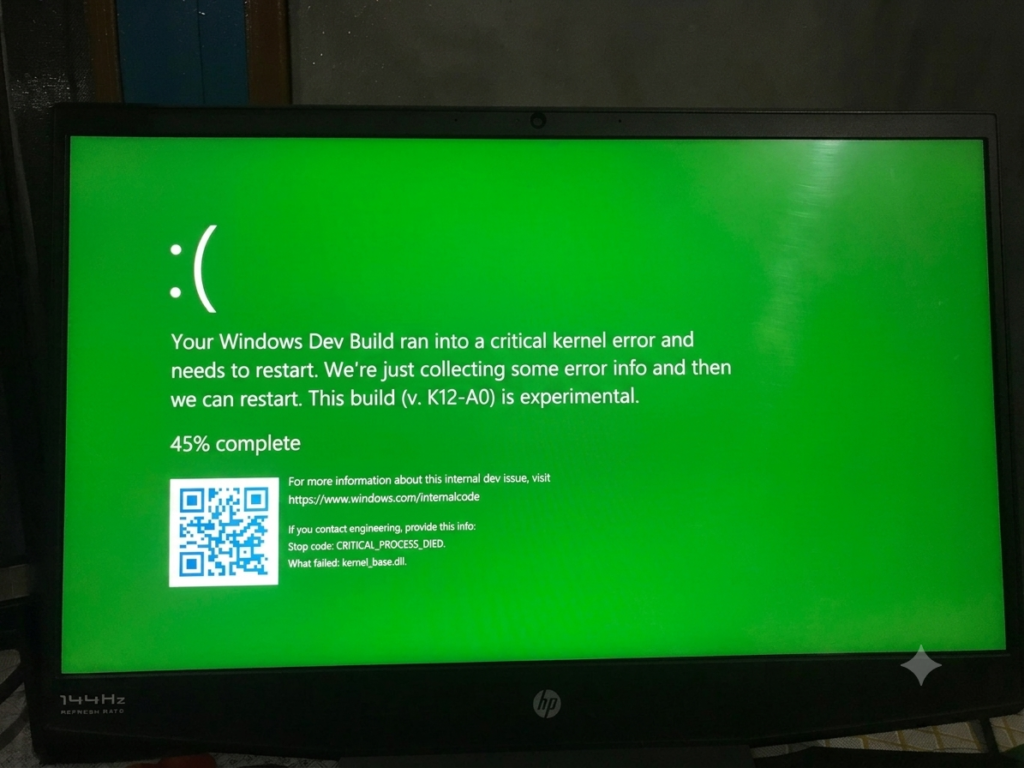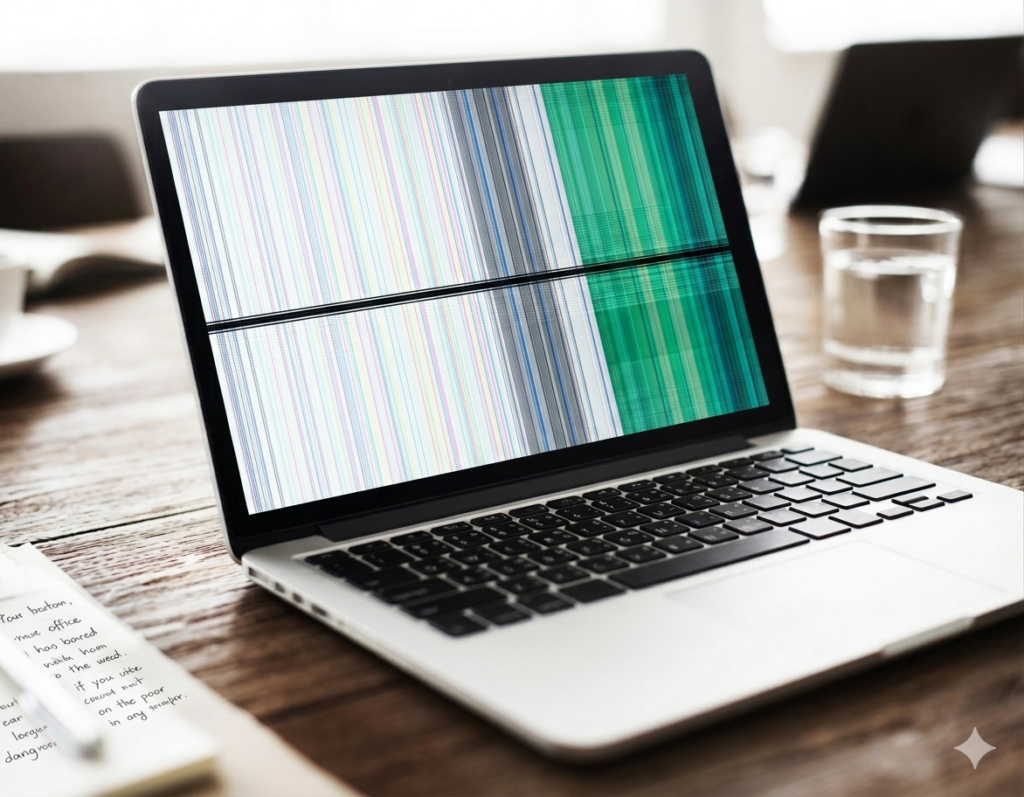
A laptop screen should look clear and smooth. When horizontal lines appear on the screen, it becomes hard to see anything properly. These lines can be thin or thick. They may stay still or flicker while you use the laptop. This issue usually signals a problem in the display system.
This problem matters because it directly affects your daily tasks. You may struggle to read text, watch videos, attend online classes, or complete office work. Even simple use becomes frustrating when the screen is not clear.
In this article , you will learn the main reasons behind horizontal lines on a laptop screen. You will also discover simple fixes you can try at home. You will also understand when the issue needs professional repair help.
Common Causes of Horizontal Lines
Horizontal lines on a laptop screen can appear for many different reasons. These reasons are usually linked to software problems, hardware faults, or outside factors like heat and usage habits.
When you understand the cause clearly, it becomes easier to choose the right fix and avoid wasting time on the wrong solution.
Software issues
Software issues happen inside your laptop system. These problems are often easier to fix and do not require opening the device. Many times, horizontal lines appear because the system is not working smoothly with the display.
- Old or broken display drivers can create screen display errors and lines
- System glitches may happen after Windows updates or software changes
- Wrong display settings can disturb screen quality and clarity
- Corrupted system files can affect how graphics are processed
Hardware issues
Hardware issues are more serious because they involve physical parts inside the laptop. These problems usually need repair or replacement if they are damaged.
- A loose display cable can interrupt the screen signal and cause lines
- A damaged screen panel can show permanent horizontal lines
- GPU (graphics chip) problems can affect overall display output
- Internal connection faults can weaken the screen signal flow
External factors
External factors come from how the laptop is used or the environment around it. These issues can slowly damage the screen or affect performance over time.
- Overheating can reduce screen performance and create display errors
- Physical pressure on the laptop screen can damage pixels
- Dust inside the laptop can block airflow and affect internal parts
- Heavy gaming or long usage can increase stress on hardware components
Basic Fixes You Can Try First
Before going for advanced repairs, it is always better to try simple fixes first. These steps are safe, quick, and often solve minor screen problems without technical help.
Restart the laptop
Restarting your laptop is the easiest and most effective first step. It clears small system errors and refreshes the display system, which can remove temporary horizontal lines caused by glitches.
- Turn off the laptop completely using the power button
- Wait for a few seconds before turning it back on
- Check the screen after restart for any changes
- Helps reset small display or system errors
Check display settings
Sometimes the screen issue is not hardware-related but comes from incorrect display settings. Fixing these settings can improve screen stability and remove minor visual problems.
- Set screen resolution to the recommended option
- Adjust refresh rate to a stable level like 60Hz
- Reset display settings if changes were made recently
- Helps improve clarity and reduce screen distortion
Update graphics driver
Graphics drivers act like a bridge between your system and screen. If they are outdated or broken, the display may show horizontal lines or other visual errors.
- Open Device Manager on your laptop
- Go to the display adapters section
- Update or reinstall the graphics driver
- Helps fix bugs and improve screen performance
Advanced Troubleshooting Steps
If basic fixes do not solve the problem, then you need deeper checks. These steps help you find whether the issue is in software, screen, or internal hardware.
Test with external monitor
Using an external monitor helps you clearly understand where the problem is coming from. It is one of the most important diagnostic steps.
- Connect your laptop to an external monitor using HDMI or cable
- Observe both screens carefully for horizontal lines
- If both screens show lines, the GPU or system is the issue
- If only laptop screen shows lines, the display panel is faulty
Check for overheating
Overheating can affect many parts of a laptop, including the screen display system. High temperature can reduce performance and cause visual issues.
- Clean laptop air vents to improve airflow
- Keep laptop on a flat and hard surface
- Avoid using laptop on bed or sofa
- Use a cooling pad for heavy tasks like gaming
Safe mode testing
Safe Mode helps you check if the problem is caused by software or system settings. It loads only basic drivers and removes extra programs.
- Start the laptop in Safe Mode
- Observe if horizontal lines still appear
- If lines disappear, software is the cause
- If lines remain, hardware is likely the issue
Hardware-Related Fixes
Loose display cable
- Screen connection becomes weak
- Lines change when moving laptop lid
- Screen may flicker or blink
- Repair involves opening laptop and fixing cable
Screen panel damage
- Permanent horizontal lines appear
- Lines stay after restart
- Screen may look faded or dark
- Full screen replacement is needed
GPU failure (rare case)
- Lines appear on laptop and external monitor
- Screen may freeze or distort
- Laptop performance may drop
- Professional repair is required
👉 Example: External monitor works fine, but laptop screen shows lines.
Prevention Tips
Handle laptop carefully
- Do not press the screen
- Avoid closing lid with force
- Use protective laptop bag
- Prevent accidental drops
Keep laptop cool
- Clean vents regularly
- Use laptop on flat surface
- Avoid blocking airflow
- Limit long gaming sessions
Update system regularly
- Update graphics drivers
- Install OS updates on time
- Restart after updates
- Check system after major updates
Conclusion
You should always start with simple fixes like restarting your laptop and checking display settings. If the issue continues, move to advanced checks like updating drivers and testing with an external monitor. These steps help you find if the problem is in software or hardware.
Hardware issues should be checked only after basic fixes. Do not ignore horizontal lines if they keep coming back. If the problem stays, get professional repair help. Quick action can help protect your laptop screen from further damage.
FAQS
Can horizontal lines go away on their own?
Sometimes yes, if it is a small system glitch. A simple restart can fix it. But if the issue is from hardware, it will not go away and may get worse.
Is it safe to keep using the laptop?
It depends on the problem. If lines are light, you can still use it. But if they grow or flicker more, it is better to stop and check the issue.
Can software updates fix the problem?
Yes, if the issue is caused by drivers or system bugs. Updating or reinstalling graphics drivers can often fix it.
How much does screen repair cost?
It depends on the laptop model and damage. Simple fixes cost less, but screen replacement can be more expensive.
Can a virus cause screen lines?
It is very rare. Most of the time, screen lines come from hardware or driver issues, not viruses.
Will restarting fix horizontal lines permanently?
No, restart only fixes temporary problems. If the screen is damaged, the lines will come back again.
What if lines appear only when the laptop heats up?
This may be due to overheating or GPU stress. Cooling the laptop and cleaning vents can help reduce the issue.
Do I need to replace the whole laptop for this issue?
No, usually only the screen or a small part needs repair. Full replacement is rarely needed.