A hard-to-press laptop keyboard can make simple typing feel slow and frustrating. You press a key, but it does not respond smoothly. It feels stiff, heavy, or slightly stuck. This small issue can affect your daily tasks more than you expect.
It can slow down your work, disturb your studies, and even ruin your gaming experience. A smooth keyboard is important for fast and easy typing.
Have you ever felt your laptop keys are not smooth while typing?
Main Causes of Hard Keyboard Keys
A hard keyboard usually becomes like this over time. It does not happen in one moment. You may notice some keys feel slow or heavy while typing. This makes your work difficult and slow. Most of the time, small hidden issues cause it.
Dust and Dirt Buildup
Dust is a very common reason for hard keys. Small dust particles slowly go under the keys. Over time, they block smooth movement. Crumbs from snacks also get stuck inside. This slowly makes typing rough and uneven.
Key points:
- Dust goes under keys slowly
- Food crumbs cause blockage
- Keys feel rough or stuck
- Space bar often affected
- Regular cleaning helps
Example: If you eat chips or biscuits near your laptop, small crumbs can fall under the keys and make the space bar or arrow keys feel stuck.
Sticky Spills
Sticky drinks can quickly make keyboard keys hard. Liquids like tea, coffee, or juice spread under the keys. This leaves a sticky layer that blocks movement. Even a small drop can cause big trouble.
Key points:
- Tea, coffee, juice are main causes
- Small spills spread easily
- Sticky layer blocks keys
- Keys feel slow or stuck
- Quick cleaning is needed
Example: If a little tea spills near the enter key, it may dry and leave a sticky layer that makes the key press feel slow or heavy.
Physical Wear and Tear
With time, keyboard parts become weak. Every key has small moving parts under it. After long use, these parts lose smooth movement. Heavy typing makes this faster and more noticeable.
Key points:
- Happens in old keyboards
- Internal parts get weak
- Heavy use increases damage
- Keys lose smooth feel
- May need repair or replacement
Example: If you use your laptop daily for school or office work, after a few years the shift or space key may feel harder than the rest.
Software Issues (Rare)
Sometimes the problem is not physical damage. Software or driver issues can also affect keyboard response. A small glitch can make keys feel slow or unresponsive.
Key points:
- Caused by drivers or settings
- Not very common
- Can affect key response
- Restart may fix it
- Driver update helps
Example: After a Windows update, your keyboard may start lagging, but a restart or driver update can quickly fix it.
Easy Fixes You Can Try at Home
Basic Cleaning
- Turn off your laptop completely before starting any cleaning work
- Use a soft microfiber cloth to gently wipe all the keys one by one
- Carefully remove all visible dust, dirt, and small particles from the keyboard surface
- Clean very gently and avoid pressing the keys too hard during cleaning
Use Compressed Air
- Use a compressed air can or blower to push air between the keyboard keys
- Slowly move across the entire keyboard so dust comes out from all areas
- This helps remove hidden dust that you cannot clean with cloth easily
- Example: It can easily fix a stuck space bar or enter key problem
Clean Sticky Keys
- Take a cotton swab and lightly dip it in isopropyl alcohol (small amount only)
- Carefully clean around the sticky or hard-to-press keys from all sides
- Make sure you do not pour any liquid directly inside the keyboard
- This method helps remove sticky layers caused by tea, coffee, or juice spills
Restart and Check Settings
- Restart your laptop to clear small temporary glitches in the system
- Check if the keyboard is responding normally after reboot
- Go to system settings and update keyboard drivers if needed
- This step can fix rare software-related keyboard response issues
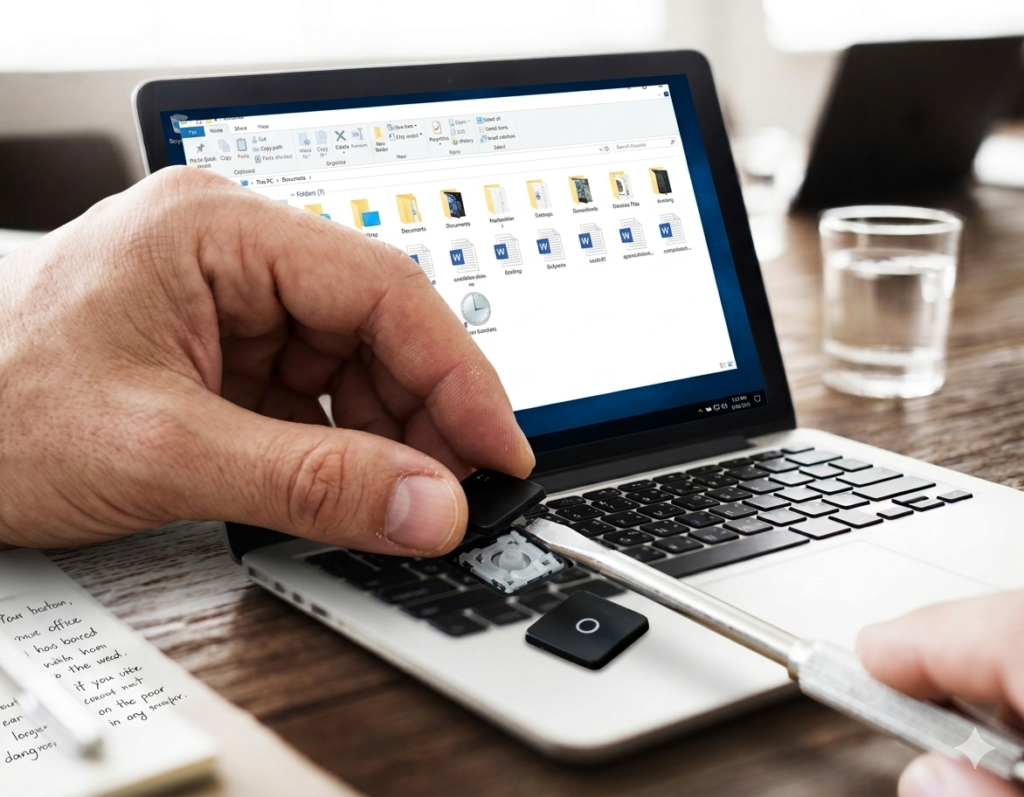
Remove Keycap (Advanced Step)
- Only try this method if your laptop keys are safely removable
- Gently lift the keycap using a proper safe tool or soft plastic edge
- Clean under the key carefully to remove dust or sticky material inside
- Place the keycap back in its original position very carefully
- Warning: Only do this if you feel confident, otherwise avoid it to prevent damage
When to Go for Repair
Sometimes home fixes are not enough. In that case, you need a technician. If the problem keeps coming back, it may be deeper inside the keyboard. A repair expert can check the internal damage and fix it safely.
Signs you need a technician
- Many keys are hard or not working properly at the same time
- Liquid like tea, coffee, or water has spilled on the keyboard
- Keys feel broken, loose, or completely unresponsive
- Problem stays even after cleaning and restarting
Example: After a drink spill, the whole keyboard may feel stiff and some keys may stop working completely, even after cleaning at home.
Prevention Tips
Prevention is better than repair. Small daily habits can keep your keyboard smooth for a long time. You do not need much effort, just a little care every day.
Daily Habits
- Keep food and drinks away from your laptop area
- Type gently and avoid pressing keys with extra force
- Do not eat while using the laptop to reduce crumbs
Weekly Care
- Do light cleaning once a week to remove dust
- Use a soft brush to clean between the keys
- Wipe the keyboard surface regularly
Extra Protection
- Use a keyboard cover to stop dust and spills
- Keep your laptop in a clean and dust-free place
- Avoid using the laptop in very dusty areas
Conclusion
Most hard-to-press keyboard problems happen because of dust, dirt, or small liquid spills. In many cases, the issue is not serious and you can fix it at home with simple cleaning and basic care.
Restarting the laptop, using compressed air, or gently cleaning the keys often brings the keyboard back to normal. So before going to a repair shop, it is always better to try easy and safe fixes first.
Which fix will you try first today?
FAQS
Can a hard keyboard fix itself?
Sometimes small dust problems can improve on their own with normal use or light cleaning. But most of the time, proper cleaning gives better and faster results.
Is it safe to use alcohol for cleaning?
Yes, it is safe if you use a very small amount on a cloth or cotton. Never pour alcohol directly on the keyboard, and always clean gently.
Can software fix hard keys?
Software can help only in rare cases where drivers or settings are the problem. Most hard-key issues are physical, so cleaning is more important.
How often should I clean my keyboard?
You should clean your keyboard at least once a week for normal use. Regular cleaning helps stop dust buildup and keeps keys smooth.
Should I replace my keyboard?
You should replace it only when the damage is serious. If many keys are broken or not working even after repair, replacement is the best option.
Why do only some keys feel hard?
This usually happens because dust or dirt gets stuck under specific keys. It can also happen if one key gets more use than others.
Can water damage make keys hard permanently?
Yes, water or liquid damage can cause long-term issues. If not cleaned quickly, it can make keys sticky or completely stop working.
Do keyboard covers really help?
Yes, keyboard covers help a lot. They stop dust, crumbs, and spills from entering and keep the keyboard clean for a longer time.