Slow internet on a touch screen laptop can be very frustrating. Pages take too long to load. Videos keep buffering. Simple tasks feel slow and stuck.
This issue can affect your study, work, and entertainment. It often makes even basic browsing hard to use.In most cases, the problem is not serious. It happens due to small issues like weak Wi-Fi, background apps, or simple system settings.
The good news is you can fix it at home with easy steps.You do not need any technical skills. Just a few simple checks can help you get your internet speed back.
Is your internet slow right now on your laptop?
Understanding the Problem
Slow internet means your laptop takes more time than normal to load online pages. Websites open slowly. Videos start late or stop while playing. Even when Wi-Fi shows connected, everything feels delayed. This makes normal tasks feel hard and slow.
Common causes
- Weak Wi-Fi signal
- Too many apps using internet
- Old system settings
- Too many devices connected to Wi-Fi
- Background updates running
Real-life example
A YouTube video keeps stopping again and again while playing, even though Wi-Fi is connected.
Basic Fixes
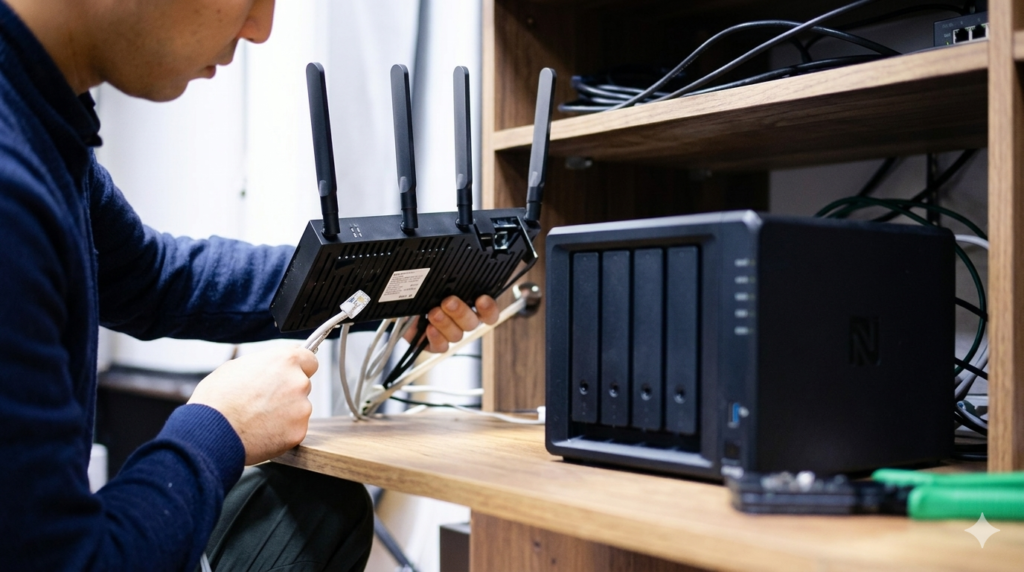
Restart Your Laptop and Router
Restarting your laptop and Wi-Fi router is one of the easiest ways to fix slow internet. It clears small glitches and refreshes the connection. Many times, the internet slows down just because the connection stays active for too long without a refresh.
Key Points
- Turn off laptop and start again
- Restart Wi-Fi router for 10–20 seconds
- Refreshes internet connection
Example
Your internet feels slow while browsing. After restarting both devices, pages start loading faster again.
Check Wi-Fi Signal Strength
Wi-Fi speed depends a lot on how strong the signal is. If you are far from the router or there are walls in between, the signal becomes weak and internet slows down. Staying closer to the router usually gives a better and faster connection.
Key Points
- Sit closer to Wi-Fi router
- Avoid walls and long distance
- Keep laptop in open space
Example
Internet is slow in your room, but when you move near the router, videos load smoothly.
Reconnect to Wi-Fi
Sometimes your laptop has a small connection error with Wi-Fi. Forgetting the network and connecting again helps reset the connection. This gives your laptop a fresh start with the network.
Key Points
- Forget Wi-Fi network
- Reconnect using password
- Fixes small connection issues
Example
Wi-Fi shows connected, but nothing loads. After reconnecting, everything starts working normally.
System Fixes on Your Laptop
Close Background Apps
Many apps keep using internet even when you are not using them. These apps quietly run in the background and take your internet speed. This makes browsing slow and videos buffer more often. Closing them gives your laptop full speed for your main task.
Key Points
- Close unused background apps
- Stop auto-updates and syncing
- Free internet for browsing
Example
You are watching a video, but it keeps stopping. After closing background apps like Google Drive or updates, the video runs smoothly.
Disable Metered Connection
Metered connection is a setting that limits internet usage to save data. When this option is on, your laptop may slow down downloads and updates. Turning it off allows your system to use full internet speed without restrictions.
Key Points
- Turn off data limit mode
- Allow full internet access
- Improve speed and loading time
Example
Web pages take long to open. After disabling metered connection, everything starts loading faster.
Update Network Drivers
Network drivers help your laptop connect to Wi-Fi properly. If they are old or not updated, your internet can become slow or unstable. Updating them improves connection quality and fixes hidden issues in the system.
Key Points
- Update Wi-Fi/network driver
- Fix connection problems
- Improve stability and speed
Example
Your Wi-Fi keeps disconnecting. After updating the driver, the connection becomes stable and fast.
Advanced Fixes (When Problem Continues)
Run Internet Troubleshooter
Windows provides a built-in troubleshooter that can automatically find and fix internet problems. It checks your network settings and tries to repair issues without manual effort. This is helpful when you don’t know the exact cause of the slow internet.
Key Points
- Use built-in Windows tool
- Detects network issues automatically
- Fixes common problems
Example
Your internet is not working properly. You run the troubleshooter, and it fixes the issue in a few minutes.
Scan for Viruses
Viruses or malware can secretly use your internet in the background. They slow down your speed without showing any clear warning. Running a full system scan helps remove these hidden threats and improves performance.
Key Points
- Run full virus scan
- Use Windows Security or antivirus
- Remove harmful software
Example
Your internet feels very slow even with good Wi-Fi. After scanning, the system removes a virus and speed improves.
Reset Network Settings
Resetting network settings is a strong fix when nothing else works. It clears all saved Wi-Fi connections and network configurations. After reset, your laptop starts fresh and you need to reconnect to Wi-Fi again.
Key Points
- Reset all network settings
- Remove saved Wi-Fi data
- Fix deep connection issues
Example
Internet still does not work after all steps. After resetting network settings, you reconnect Wi-Fi and everything starts working normally again.
Touch Screen Laptop Specific Tips
- Keep screen and touch drivers updated
- Avoid heavy apps running in the background on touch devices
- Reduce too many touch gestures at the same time
- Close unused touch-based apps
Tips to Keep Internet Fast
- Restart your router once a week
- Keep your system updated regularly
- Avoid too many devices connected to the same Wi-Fi
- Use a strong Wi-Fi password to stop unwanted users
Common Mistakes to Avoid
- Ignoring router or Wi-Fi device problems
- Keeping too many apps open at the same time
- Not updating system or network drivers
- Using weak Wi-Fi signal from far distance
Conclusion
Slow internet on a touch screen laptop is a common issue, but it is usually easy to fix. Most of the time, small problems like weak Wi-Fi signal, background apps, or outdated settings cause it.
The main fixes are simple and quick. Restart your laptop and router. Check your Wi-Fi signal strength. Close apps that are not needed. Update your network drivers when required. These steps solve most speed issues without any difficulty.
If the problem still stays, you can try extra steps like running the troubleshooter or resetting network settings. These help when the issue is deeper.Try each step slowly and one by one. You will often see the internet speed improve within minutes.
Which step worked for you?
FAQS
Why is my laptop internet slow but phone is fast?
It can happen due to laptop settings, old drivers, or background apps using internet. Your phone may not have these issues, so it feels faster.
Can viruses slow internet speed?
Yes, viruses can use internet in the background and reduce your speed without you noticing.
Does restarting really help?
Yes, restarting fixes small errors and refreshes your connection, which often improves speed.
Should I reset network settings often?
No, use it only when simple fixes do not work, because it removes saved Wi-Fi data.
Is Wi-Fi or laptop the main problem?
It can be both. You should check Wi-Fi signal and laptop settings to find the real issue.
Why does my Wi-Fi keep disconnecting on laptop?
This can happen due to weak signal, driver issues, or router problems.
Can too many apps slow my internet?
Yes, background apps can use internet and make your speed slow.
How can I make my internet faster quickly?
Restart your router, close unused apps, and move closer to Wi-Fi for quick improvement.