Mouse lag on Windows 11 can make your computer feel slow and annoying. The cursor may freeze, stutter, move slowly, or react late when you click. These issues can affect gaming, office work, browsing, and daily tasks.
Mouse lag usually happens because of old drivers, Bluetooth connection problems, high CPU usage, damaged USB ports, or incorrect Windows settings. Sometimes even a small system issue can make the mouse feel unresponsive.
The good news is that most mouse lag problems are easy to fix. With a few simple changes, you can improve mouse speed and make your PC feel smooth again.
Want to stop the lag and get better performance from your Windows 11 PC?
Basic Checks Before Advanced Fixes
Before changing advanced settings, try these simple fixes first. Many mouse lag problems get solved in just a few minutes.
Restart Your Computer
- Restarting clears temporary system errors
- It refreshes drivers and background processes
- Small Windows glitches often disappear after rebooting
- Save your work before restarting
Check Mouse Battery
- Low battery can cause lag and disconnections
- This is common in wireless and Bluetooth mice
- Replace old batteries or fully charge the mouse
- Keep battery level above 20% for stable performance
Reconnect the Mouse
For USB Mouse
- Unplug the mouse from the PC
- Wait a few seconds
- Plug it back into the USB port
For Bluetooth Mouse
- Turn Bluetooth off and on again
- Remove the mouse from paired devices
- Connect the mouse again
Try Another USB Port
- Faulty USB ports can cause delayed cursor movement
- Try connecting the mouse to a different USB port
- Avoid loose or damaged ports
- USB 3.0 ports usually give better performance
Update or Reinstall Mouse Drivers
Mouse drivers control how your mouse works with Windows 11. If they are outdated or broken, your mouse can feel slow, laggy, or unresponsive. Updating or reinstalling drivers can quickly fix many mouse problems and improve smoothness.
What Are Mouse Drivers?
Mouse drivers are small software tools that help Windows understand your mouse actions. When you move or click, the driver sends that signal to the system.
If the driver is not working properly, your mouse may behave strangely. You may see delay, freezing, or slow movement.
Key Points
- Mouse drivers connect mouse and Windows
- They control movement and clicks
- Bad drivers cause lag and freezing
- They work in the background automatically
Example
After a Windows update, your mouse may start feeling slow or jumpy because the driver is not working correctly.
Update Mouse Drivers
Updating mouse drivers helps fix bugs and improves performance. Windows can install the latest driver automatically using Device Manager.
Steps to Update Mouse Drivers
- Open Device Manager from Start menu
- Expand “Mice and other pointing devices”
- Right-click your mouse
- Click “Update driver”
- Select “Search automatically for drivers”
- Wait for Windows to finish
Example
If your cursor moves slowly while working, updating the driver can make movement feel fast and smooth again.
Reinstall Mouse Drivers
Reinstalling is useful when updating does not fix the problem. It removes the old driver and installs a fresh version automatically.
Steps to Reinstall Mouse Drivers
- Open Device Manager
- Find “Mice and other pointing devices”
- Right-click your mouse
- Click “Uninstall device”
- Restart your PC
After restart, Windows will reinstall the driver automatically.
Example
If your mouse freezes during gaming or work, reinstalling the driver can solve the issue completely.
Fix Bluetooth Mouse Lag
Bluetooth mouse lag happens when the connection between your mouse and computer becomes weak. It can cause slow movement, freezing, or delayed clicks. The good news is that you can fix it with simple steps.
Move Closer to the Computer
When your mouse is too far from the computer, the Bluetooth signal becomes weak. This weak signal can cause delay and stuttering in movement.
Key Points
- Distance weakens Bluetooth signal
- Closer range gives better response
- Walls and objects can reduce signal strength
- Keep mouse near the laptop or PC
Example
If you use your mouse from across the room, the cursor may feel slow or stop for a moment.
Reduce Wireless Interference
Other wireless devices can disturb your Bluetooth signal. This can make your mouse lag or disconnect.
Key Points
- WiFi routers can interfere with signal
- Phones near the mouse can cause lag
- Wireless speakers also create interference
- Keep devices away from mouse receiver
Example
A WiFi router placed next to your mouse receiver can create signal issues and cause jumping cursor movement.
Update Bluetooth Drivers
Bluetooth drivers help your computer connect properly with the mouse. If they are old, your mouse may lag or disconnect.
Steps to Update Bluetooth Drivers
- Open Device Manager
- Expand Bluetooth section
- Right-click Bluetooth adapter
- Click “Update driver”
- Select “Search automatically for drivers”
- Wait for update to finish
Example
After updating Bluetooth drivers, your mouse may start moving smoothly without delays.
Turn Bluetooth Off and On
Sometimes Bluetooth just needs a quick reset. Turning it off and on can fix small connection problems.
Key Points
- Refreshes Bluetooth connection
- Fixes temporary glitches
- Takes only a few seconds
- Simple and effective fix
Example
If your mouse suddenly starts lagging, turning Bluetooth off and on can quickly bring it back to normal.
Disable USB Power Saving
USB power saving is a Windows feature that turns off USB devices to save power. Sometimes it also turns off your mouse connection. This can cause lag, freezing, or sudden disconnection. Turning it off helps keep your mouse stable.
Why Windows Turns Off USB Devices
- Windows saves power automatically
- USB ports may turn off when idle
- Mouse connection can stop for a few seconds
- Can cause lag or freezing
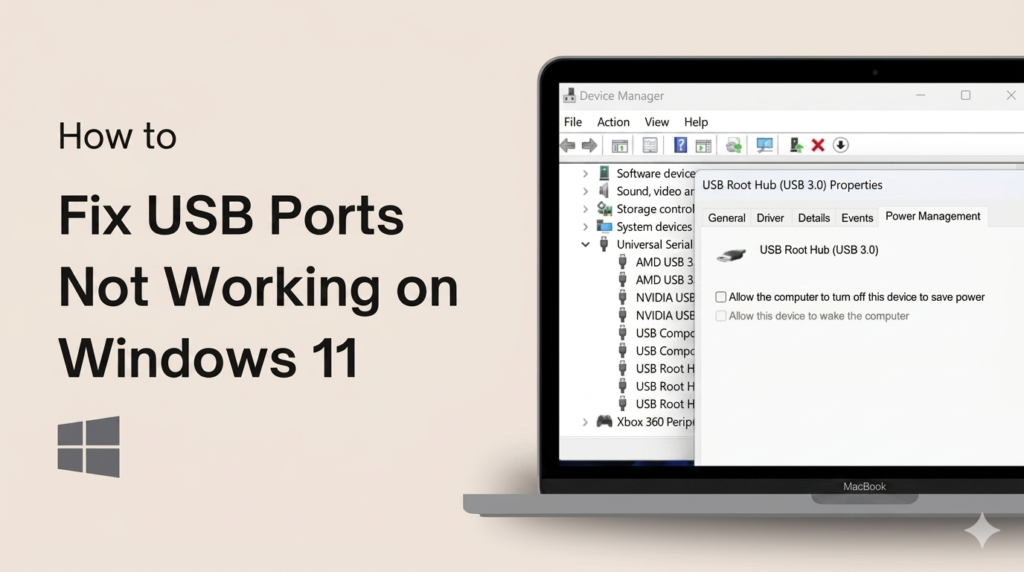
Steps to Disable USB Power Saving
- Open Device Manager
- Go to “Universal Serial Bus controllers”
- Right-click “USB Root Hub”
- Click Properties
- Go to Power Management tab
- Uncheck “Allow the computer to turn off this device”
- Repeat for all USB Root Hub options
Reduce High CPU and RAM Usage
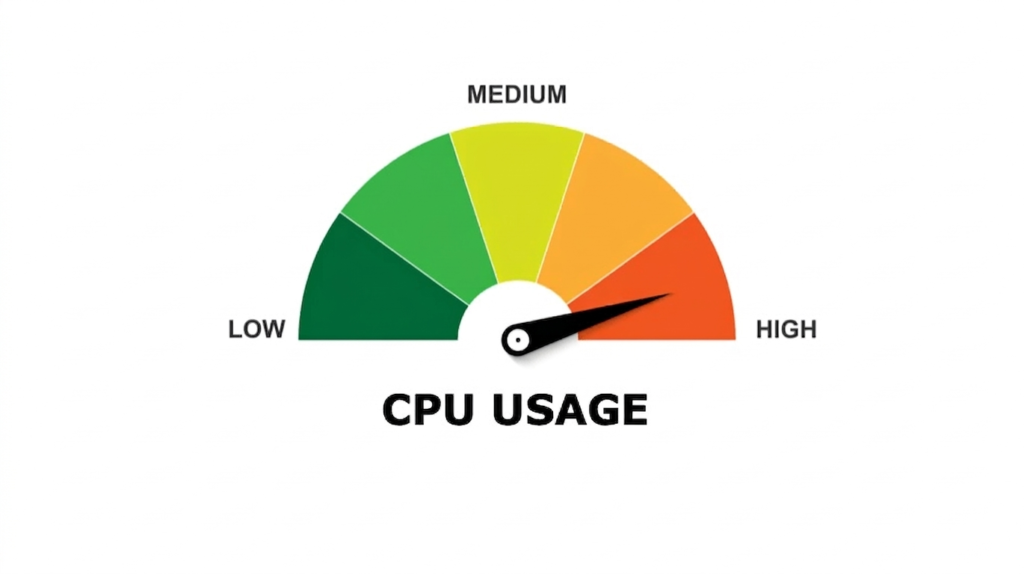
When your computer runs too many apps at the same time, it becomes slow. The system gets overloaded and cannot handle mouse input properly. This leads to lag, delay, freezing, or stuttering. Reducing system load makes your mouse feel smooth again..
Why Heavy PC Usage Causes Mouse Lag
- High CPU slows system response
- Low RAM creates delays
- Background apps use system power
- Mouse movement becomes slow or late
Close Background Apps
- Browsers use high RAM
- Video/editing apps slow system
- Antivirus scans increase CPU load
- Closing apps improves performance
Disable Startup Programs
- Apps run automatically at startup
- Uses RAM and CPU early
- Slows boot time and system speed
- Disabling improves performance
Update Graphics Drivers
Graphics drivers help your computer show images, videos, and screen movement. If they are old or broken, your screen can feel slow. This can also make your mouse feel laggy or delayed because everything on the screen updates slowly.
Graphics drivers control how your screen is drawn. When you move your mouse, Windows must redraw the screen quickly. If the driver is slow, the cursor will also feel slow.
Update GPU Drivers
- NVIDIA users can use GeForce Experience or official website
- AMD users can use Adrenalin software or official website
- Intel users can use Intel Driver & Support Assistant
- Install latest stable driver version
- Restart PC after installation
Tip
Download drivers only from official websites to avoid fake or unsafe software.
Fix Mouse Lag While Gaming
Mouse lag in gaming is very frustrating. It can make your aim slow and your movement delayed. This usually happens when your system is overloaded or settings are not optimized for performance.
Lower In-Game Graphics Settings
- Reduce shadows and lighting effects
- Lower texture quality
- Turn off heavy effects like motion blur
- Reduce resolution if needed
- Helps reduce GPU load and improves smooth gameplay
Use a Wired Mouse
- Wired mice give faster response time
- No Bluetooth or wireless delay
- More stable connection during gaming
- Better for competitive and fast games
- Reduces input lag
Disable Xbox Game Bar
- Go to Windows Settings
- Open Gaming section
- Turn off Xbox Game Bar
- It can use background resources
- Disabling improves performance in some games
Turn On Game Mode
- Open Windows Settings
- Go to Gaming → Game Mode
- Turn Game Mode ON
- It prioritizes game performance
- Reduces background activity
Check for Windows Updates
Windows updates are important because they fix bugs and improve system performance. Sometimes mouse lag happens because of old system files or missing fixes. Updating Windows can make your mouse smoother and your PC faster.
Why Updates Matter
- Fix system bugs and errors
- Improve overall performance
- Improve mouse and device stability
- Add security and system improvements
How to Update Windows 11
- Install updates and restart PC
- Open Settings
- Go to Windows Update
- Click “Check for updates”
- Download available updates
When to Replace the Mouse
Signs Your Mouse May Be Faulty
- Mouse disconnects again and again
- Cursor moves in a broken or shaky way
- Mouse lags on more than one computer
- Clicks stop working sometimes
- Sensor does not track surface properly
Wired vs Wireless Mouse
- Wired mouse gives stable and fast response
- Wireless mouse is more flexible and easy to use
- Wired mouse has lower chance of lag
- Wireless mouse can lag due to battery or signal issues
- Gaming users often prefer wired mouse for better speed
Tips to Prevent Mouse Lag in the Future
Keep Drivers Updated
- Update mouse and Bluetooth drivers regularly
- Fixes bugs and improves performance
- Helps Windows work smoothly with devices
Clean the Mouse Sensor
- Clean the bottom sensor area gently
- Remove dust and dirt build-up
- Improves tracking and accuracy
Avoid Cheap USB Hubs
- Cheap hubs can reduce power and speed
- May cause random disconnects
- Use direct USB ports when possible
Restart PC Regularly
- Clears temporary system files
- Fixes small glitches
- Keeps performance stable
Keep Windows Updated
- Install latest Windows updates
- Fixes system bugs
- Improves device stability
Conclusion
Mouse lag on Windows 11 can be annoying, but it is usually easy to fix. Most problems come from simple issues like old drivers, wrong settings, Bluetooth problems, or high system usage. You can solve it step by step by checking basics first, then moving to advanced fixes if needed.
Start with simple fixes like restarting your PC, checking your mouse battery, and updating drivers. If the problem stays, then try advanced solutions like changing settings, reducing CPU load, or updating Windows. Always test each fix one by one so you can find the real cause easily.
FAQS
Why is my mouse lagging on Windows 11?
Mouse lag happens due to old drivers, high CPU usage, Bluetooth issues, or wrong settings. It can also happen if the USB port is faulty or the system is overloaded.
Can low battery cause mouse lag?
Yes, low battery in a wireless mouse can cause delay, freezing, or weak signal problems.
Is Bluetooth mouse slower than wired mouse?
Yes, a Bluetooth mouse can have slight delay. A wired mouse gives faster and more stable response.
Can drivers fix mouse lag?
Yes, updating or reinstalling drivers often fixes lag by removing bugs and improving performance.
Why does my mouse freeze randomly?
It can freeze due to driver issues, weak Bluetooth connection, low system performance, or USB power saving.
Does Windows 11 cause mouse problems?
Sometimes Windows updates or settings can cause issues, but most problems are fixed with updates or simple settings changes.
How do I know if my mouse is damaged?
If the mouse lags or fails on multiple computers, or the sensor stops tracking properly, it may be damaged.
Can high CPU usage affect mouse movement?
Yes, high CPU usage slows the system and can make mouse movement laggy or unresponsive.