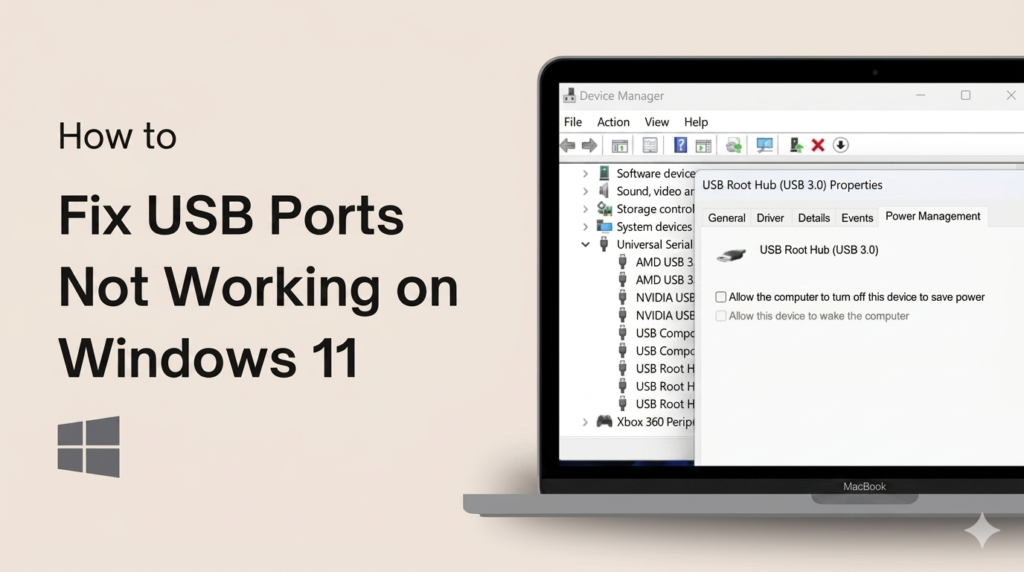
USB ports help your PC connect with devices like USB drives, mouse, and keyboard. Sometimes Windows 11 does not detect the USB device at all. Nothing shows on the screen, and the device seems not working.
This problem usually happens due to driver issues, power settings, or small system glitches in Windows 11.
Have you ever plugged in a USB and nothing happened?
Common Reasons Behind the Problem
Hardware issues
- Loose USB port can stop proper connection
- Damaged USB cable can block data transfer
- Faulty USB device may not work on any PC
Software issues
- Old or missing drivers stop USB detection
- Windows 11 bugs can block device recognition
- Corrupted system files may affect USB support
Power settings problem
- Windows may turn off USB ports to save power
- Power saving mode can disable idle USB devices
- This can make a working device look “dead”
System glitches
- Temporary Windows errors can freeze USB function
- System update bugs may affect detection
- A simple restart often clears these issues
Basic Checks First (Easy Fixes)
Try another USB port
Sometimes the USB port is the real problem, not the device. Plug your USB into another port on your PC. Front ports often fail more than back ports. If it works in another port, then the original port is damaged or loose.
Key Points
- Switch to a different USB port
- Front ports can be weaker than back ports
- Working in another port means first port is faulty
Tip
Always try back USB ports first for better stability
Try another device
The problem can also be in the USB device itself. Test another USB device in the same port. Also try your USB on another PC or laptop. If it fails everywhere, the device is damaged.
Key Points
- Test a different USB device on your PC
- Check your USB on another computer
- Failure on all devices means USB is faulty
Tip
Keep a spare USB device for quick testing
Restart your computer
A simple restart can fix many small Windows issues. It refreshes system processes and resets USB detection. Many temporary glitches disappear after reboot.
Key Points
- Restart clears temporary system bugs
- Refreshes USB detection system
- Fixes small Windows 11 glitches
Tip
Restart PC before trying advanced fixes
Fix USB Drivers in Windows 11
Update USB drivers
Old drivers can stop USB devices from working. You need to update them to fix detection issues. Open Device Manager and go to “Universal Serial Bus controllers.” Right-click each option and select update driver. This helps Windows read the USB device properly again.
Key Points
- Open Device Manager in Windows 11
- Go to Universal Serial Bus controllers
- Update all USB drivers one by one
- Fixes issues caused by old or broken drivers
Tip
Always restart your PC after updating drivers
Reinstall drivers
Sometimes updating drivers is not enough. You need to reinstall them. Uninstall USB drivers from Device Manager. Then restart your PC. Windows will install fresh drivers automatically. This often fixes corrupted driver problems.
Key Points
- Uninstall USB drivers from Device Manager
- Restart your computer
- Windows installs fresh drivers automatically
- Fixes corrupted or missing driver files
Tip
Use this method if updating does not solve the issue
Example
A USB mouse may stop working suddenly due to driver corruption. After reinstalling the drivers and restarting the PC, the mouse starts working normally again.
Power Settings Fix
Disable USB selective suspend
Windows 11 has a power saving feature called USB selective suspend. It turns off unused USB ports to save energy. Sometimes it turns off a port that you still need. This can stop your USB device from working even when it is connected properly. Disabling it helps keep all USB ports active all the time.
Key Points
- USB selective suspend is a power saving feature
- It can turn off active USB ports
- This causes USB devices to stop responding
- Disabling it keeps ports always active
Why it matters
It saves battery and power, but it can also block USB devices and create detection problems in Windows 11.
Run Windows Troubleshooter
Open Settings
- Press Windows key on your keyboard
- Click on Settings from the menu
- This opens Windows system settings
Go to Troubleshoot
- Click on System section
- Scroll and find Troubleshoot
- Open Other troubleshooters option
Run Hardware and Devices Troubleshooter
- Look for Hardware and Devices tool
- Click on Run button
- Wait while Windows checks your system
- Follow the instructions shown on screen
- Apply all suggested fixes
What it does
- Detects USB connection errors
- Fixes small driver or system issues
- Repairs common hardware problems automatically
- Helps when you are not sure what is wrong
Tip
- Always run this before trying advanced fixes like drivers or BIOS changes
Disable Fast Startup
Fast Startup helps Windows boot faster. But it can also stop USB devices from loading correctly. This happens because Windows does not fully reset all hardware during startup.
Key Points
- Fast Startup speeds up boot time
- It can block USB detection
- It does not fully refresh hardware
- Turning it off improves USB stability
Steps
- Open Power Options in Control Panel
- Go to “Choose what power buttons do”
- Turn off Fast Startup
- Restart your PC
Check BIOS Settings
BIOS controls basic hardware settings in your PC. If USB ports are disabled here, Windows cannot detect any device. You need to make sure USB support is turned on.
Key Points
- BIOS controls USB hardware access
- Disabled USB stops all detection
- Settings affect Windows before it loads
- Fixing BIOS can restore full USB function
Example
- If USB is disabled in BIOS, the PC will not detect any USB device at all, even before Windows starts.
Hardware Problems
Sometimes the issue is not software. The USB port itself can be damaged. It can also be a motherboard issue. In this case, software fixes will not help.
Key Points
- Broken USB port stops connection
- Motherboard damage affects multiple ports
- Physical issues cannot be fixed with settings
- Hardware faults need repair or replacement
Simple Test
- Try a USB hub or external adapter
- If it works, your main port is likely damage
Prevention Tips
- Do not force USB into the port, always plug it gently to avoid damage
- Keep USB ports clean from dust and dirt for better connection
- Update Windows regularly to fix bugs and improve USB support
- Always remove USB safely before unplugging to prevent data loss
- Avoid using low-quality or damaged USB cables
- Do not bend USB drives while connected
Conclusion
USB not detecting in Windows 11 is a common issue, but it is usually easy to fix. Start with simple checks like changing the USB port, testing another device, and restarting your PC. If the problem stays, move to driver fixes and power settings adjustments.
Then try advanced options like disabling Fast Startup or checking BIOS settings. If nothing works, the issue is likely hardware related, such as a damaged port or faulty device.
Which fix worked for you the most?
FAQS
Why does my USB work on phone but not on PC?
This happens due to driver issues or a faulty USB port on the PC. The device is fine, but the computer cannot read it properly.
Can Windows update fix USB problems?
Yes, Windows updates can fix bugs and improve driver support, which may solve USB detection issues.
Why does only one USB port stop working?
That port may be damaged, loose, or blocked by dust, while other ports still work normally.
Do I need software to fix USB issues?
Usually no. Windows built-in tools like Device Manager are enough to fix most USB problems.
Can dust affect USB ports?
Yes, dust can block the connection and stop the USB device from being detected.
Why is my USB not detected suddenly?
It can happen due to system glitches, driver errors, or a temporary Windows crash.
Can a bad USB cable cause this issue?
Yes, a damaged cable can stop proper data transfer even if the device powers on.
Is it safe to use a faulty USB port?
No, it can damage your device or cause data loss over time.