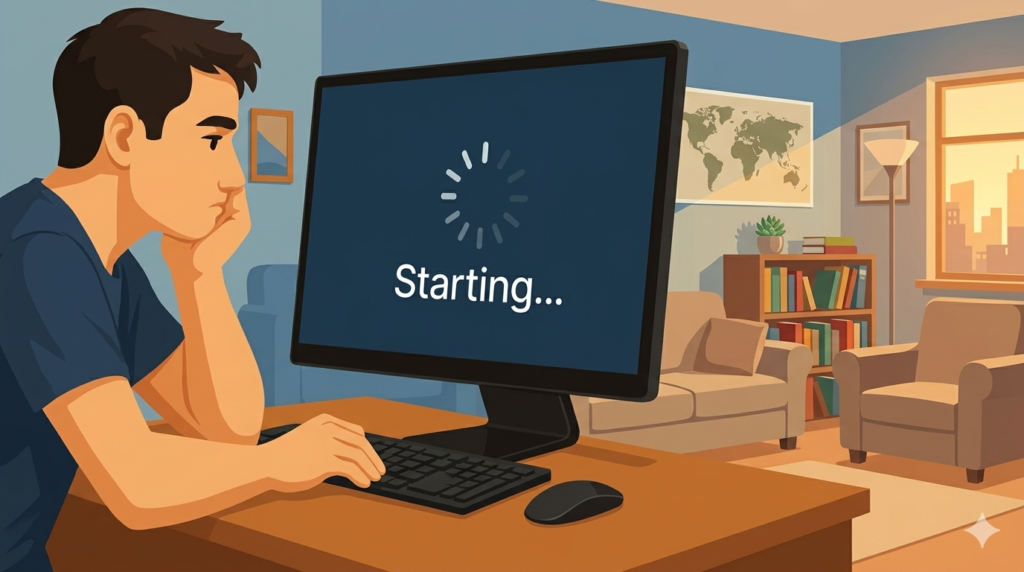
A slow computer can make work, gaming, studying, and even basic tasks feel frustrating. Many people think they need a new PC, but that is not always true.In many cases, a few simple changes can make your computer much faster again.
The good news is that you do not need to be a tech expert to fix the problem. This guide will show you easy and beginner-friendly ways to speed up your computer step by step.
From removing unnecessary apps to freeing storage space and improving performance, you will learn practical fixes that actually work.
Ready to make your computer feel fast again? Let’s get started.
Common Signs of a Slow Computer
Slow Startup Time
- Your computer takes several minutes to fully start.
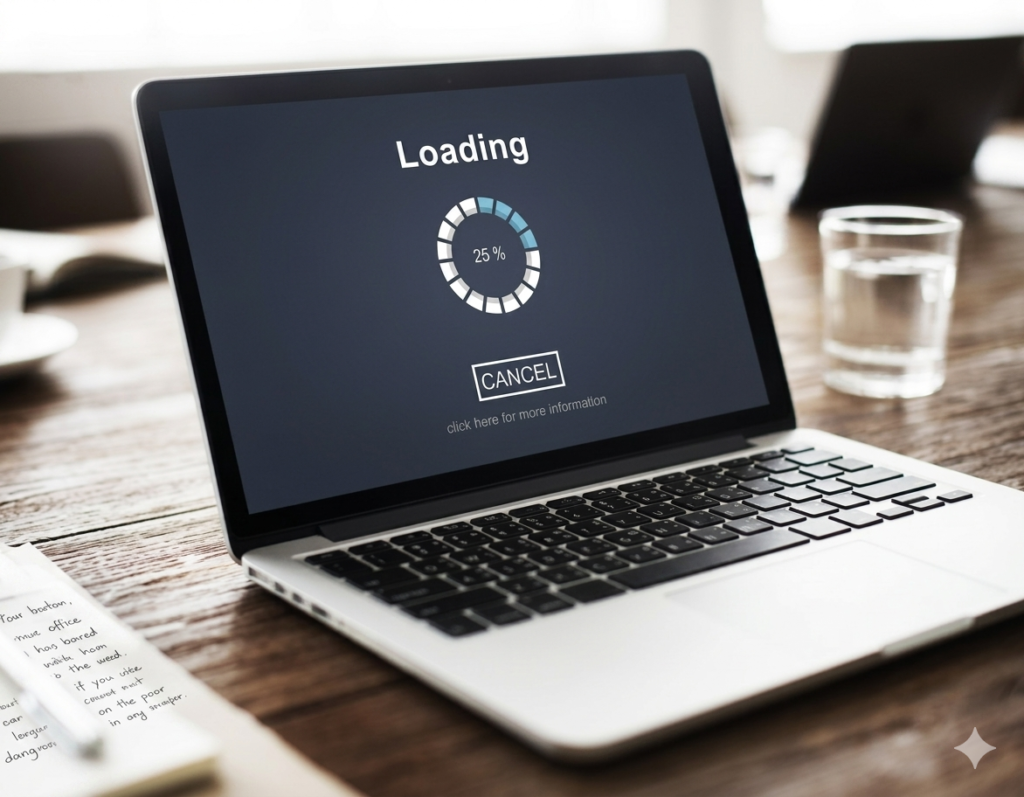
- The loading screen stays longer than normal.
- Startup apps open very slowly after login.
- The desktop may freeze for some time after turning on.
Apps Freeze or Crash
- Programs stop responding during use.
- Apps may suddenly close without warning.
- Games may freeze or lag often.
- Switching between apps feels very slow.
Internet Feels Slow
- Websites take too long to load.
- Videos may buffer even with good internet.
- Downloads can feel slower than usual.
- Sometimes the computer is slow, not the internet connection.
Overheating and Loud Fan Noise
- The fan runs loudly most of the time.
- Your computer becomes hot quickly.
- Heat may slow down system performance.
- The laptop may feel warm during simple tasks.
Slow Performance During Daily Tasks
- Opening folders takes longer than normal.
- Typing may feel delayed sometimes.
- Videos or music may stutter.
- Multitasking becomes difficult and laggy.
Why Computers Become Slow ?
Too Many Startup Programs
- Many apps start automatically in the background.
- Startup programs increase boot time.
- Extra apps use RAM and processor power.
- Too many startup apps reduce overall speed.
Low Storage Space
- Nearly full drives slow system performance.
- The computer struggles to save temporary files.
- Apps may load more slowly than before.
- Windows updates may also fail or lag.
Old Hardware
- Older processors cannot handle modern software well.
- Low RAM causes lag during multitasking.
- Old hard drives load files very slowly.
- Aging hardware affects gaming and video editing performance.
Viruses or Malware
- Malware secretly uses system resources.
- Viruses can slow startup and apps.
- Harmful files may run in the background.
- Some malware causes random freezing and crashes.
Too Many Browser Tabs
- Browsers use a lot of memory.
- Multiple tabs slow down the whole system.
- Streaming tabs increase CPU usage.
- Too many extensions can also reduce speed.
Dust and Heat Problems
- Dust blocks airflow inside the computer.
- Poor airflow causes overheating issues.
- Heat reduces system performance automatically.
- Overheating may damage hardware over time.
Outdated Software
- Old drivers may cause lag and errors.
- Outdated Windows versions reduce stability.
- Software bugs can affect system speed.
- Updates often improve performance and security.
Easy Ways to Fix a Slow Computer
Restart Your Computer
A simple restart can fix many small performance problems. Your computer stores temporary data while you use it. This can slow things down over time. Restarting clears memory and stops hidden background errors.
Key Points
- Closes unnecessary background tasks.
- Refreshes system memory.
- Fixes small software glitches.
- Improves overall speed after long use.
Tip
Restart your computer every few days to keep it running smooth and fast.
Close Unused Programs
Many apps keep running even when you are not using them. These background programs take RAM and CPU power. This makes your computer slow, especially when you open heavy apps or games.
Key Points
- Background apps use system memory.
- Too many programs slow performance.
- Multitasking becomes harder.
- Closing apps frees up system power.
Example
If you keep Chrome, a game launcher, and a video editor open together, your computer may start lagging even if you are not using all of them.
Delete Temporary Files
Temporary files are small junk files created by Windows and apps. They help for a short time but are not needed later. Over time, they pile up and take storage space, which slows your system.
Key Points
- Junk files fill up storage space.
- They slow down system performance.
- Cleaning improves loading speed.
- Helps Windows run more efficiently.
Step-by-Step
- Open Storage Settings.
- Go to Temporary Files.
- Select and remove unwanted files.
- Empty the recycle bin.
Tip
Clean temporary files once a month to keep your computer fast and responsive.
Disable Startup Apps
Some apps start automatically when you turn on your computer. These startup apps run in the background and slow down your boot time. Many of them are not even needed immediately.
Key Points
- Startup apps increase boot time.
- They use memory in the background.
- Too many startup apps reduce speed.
- Disabling them improves performance.
Example
Apps like messaging tools or game platforms often open automatically even when you don’t need them right away. This slows down your computer from the start.
Update Windows and Drivers
Updates are important because they fix bugs and improve system performance. Old software or drivers can cause slow speed, crashes, and freezing problems. Keeping everything updated helps your system run better.
Key Points
- Updates fix bugs and errors.
- Drivers help hardware work correctly.
- Old versions can slow performance.
- Updated systems run more smoothly.
Tip
Turn on automatic updates so your computer always stays optimized without effort.
Scan for Viruses
Viruses and malware are harmful programs that run without your permission. They use your computer’s power in the background and make everything slow. A regular scan helps detect and remove them.
Key Points
- Malware uses CPU and RAM secretly.
- It can slow down your system.
- It may cause crashes or freezing.
- Antivirus helps keep your PC safe.
Example
If your computer feels slow even when you are not doing anything, malware might be running in the background without your knowledge.
Free Up Storage Space
When your storage is almost full, your computer struggles to work properly. It needs free space to create temporary files and run smoothly. Removing old and unused files helps improve speed.
Key Points
- Low storage slows performance.
- Large files reduce system speed.
- Unused apps take unnecessary space.
- Free space helps Windows work better.
Tip
Try to keep at least 15–20% of your storage free so your computer stays fast and responsive.
Advanced Fixes for Bigger Problems
Upgrade RAM
RAM is an important part of your computer. It helps your system run many tasks at the same time. When RAM is low, your computer slows down during multitasking like browsing, gaming, or editing.
Key Points
- RAM helps run multiple apps smoothly.
- Low RAM causes lag and freezing.
- More RAM improves multitasking speed.
- It makes the system more stable during heavy use.
Tip
If your computer slows when you open many apps together, upgrading RAM can make a big difference.
Replace HDD with SSD
An SSD is a modern storage device that is much faster than an old HDD. It improves overall speed and makes your computer feel new again. It loads files and apps very quickly.
Key Points
- SSD is much faster than HDD.
- It improves boot time and loading speed.
- It reduces lag during daily tasks.
- It makes the system more responsive.
Example
A computer that starts in 2 minutes may boot in 20 seconds with an SSD.
Reset or Reinstall Windows
Sometimes software problems become too deep to fix with normal methods. In this case, resetting or reinstalling Windows can help. It removes old errors and gives your system a fresh start.
Key Points
- Fixes deep system errors.
- Removes unwanted files and bugs.
- Improves overall performance.
- Gives a clean fresh system.
Tip
Always back up your important files before resetting Windows to avoid data loss.
Check for Hardware Damage
Hardware problems can also slow your computer. Parts like the fan, battery, or hard drive may get weak over time. When hardware is damaged, software fixes may not fully solve the issue.
Key Points
- Faulty hardware reduces performance.
- Overheating may come from damaged fans.
- Old drives can slow file access.
- Weak parts affect overall speed.
Tip
If your computer is still slow after all fixes, take it to a technician for a proper hardware check.
How to Keep Your Computer Fast ?
Restart Regularly
- Helps clear memory problems.
- Fixes small system errors.
- Improves overall speed.
- Keeps performance stable.
Keep Software Updated
- Improves performance and security.
- Fixes bugs that slow system.
- Helps apps run smoothly.
- Keeps system stable.
Avoid Installing Unnecessary Apps
- Too many apps slow the system over time.
- Apps use background memory.
- Reduces storage space.
- Makes startup slower.
Clean Dust from Vents
- Improves airflow inside computer.
- Reduces overheating issues.
- Helps system run faster.
- Protects hardware life.
Use Trusted Software Only
- Avoids malware and viruses.
- Keeps system safe and fast.
- Prevents background threats.
- Improves stability.
Tip
- Create a monthly cleanup routine.
- Remove unused files regularly.
- Check system performance once a month.
- Keep storage organized.
Mistakes to Avoid
Installing Too Many Cleaner Apps
- Some “speed booster” apps can make things worse.
- They may slow your system more.
- Not all cleaners are safe.
- Can waste storage and memory.
Ignoring Heat Problems
- Overheating reduces performance.
- Can damage hardware over time.
- Slows down processor speed.
- May cause sudden shutdowns.
Downloading Files from Unsafe Websites
- May install malware or viruses.
- Can slow down your computer.
- Risks your personal data.
- Affects system stability.
Never Restarting the PC
- Long uptime can slow performance.
- Memory gets overloaded.
- Background errors build up.
- System becomes less responsive.
When You Should Get Professional Help
Computer Still Slow After Fixes
- Your computer stays slow even after trying all basic fixes.
- Software changes do not improve performance.
- The system may have hidden hardware issues.
- A technician can check deeper problems.
Strange Noises or Blue Screens
- You may hear clicking or grinding sounds from the computer.
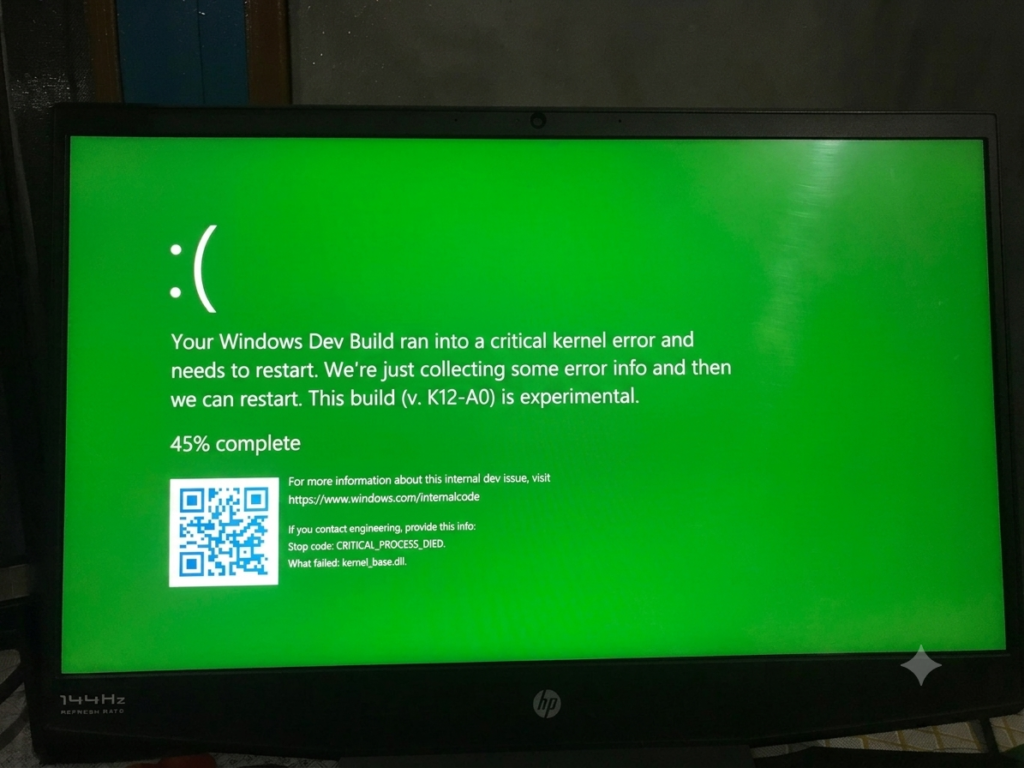
- Blue screen errors may appear again and again.
- System may restart without warning.
- These are signs of serious internal issues.
Laptop Gets Extremely Hot
- The laptop heats up very quickly during normal use.
- Fans may not control the temperature properly.
- Dust or hardware damage may be the cause.
- Internal cleaning or repair may be needed.
Conclusion
A slow computer can feel frustrating, but most problems have simple solutions. Small steps like restarting your system, closing unused apps, deleting temporary files, and removing startup programs can make a big difference. These easy fixes often solve speed issues without any expert help.
In many cases, you do not need a new computer. You just need the right cleaning and settings changes. Even basic actions like freeing storage space or scanning for viruses can bring back good speed and smooth performance.Try these fixes one by one and see what works best for your system.
Which fix helped speed up your computer the most?
FAQS
Why is my computer so slow suddenly?
Background apps, system updates, or malware can slow your computer. Sometimes too many programs start running at once and use memory.
Does restarting really help?
Yes, restarting helps clear temporary memory and stops small background errors. It often makes the system faster quickly.
How much free space should I keep?
You should keep around 15–20% free storage space. This helps your computer run smoothly and handle files better.
Can a virus slow down my computer?
Yes, viruses and malware can use system power in the background. This reduces speed and may also cause crashes.
Is upgrading RAM worth it?
Yes, especially if you use many apps at the same time. More RAM helps your computer handle multitasking easily.
What is better, HDD or SSD?
SSD is much faster and more reliable than HDD. It improves startup speed and overall performance.
How often should I clean my computer?
Every few months is a good habit. Regular cleaning helps remove dust and keeps your system running cool and fast.
Can overheating slow a computer?
Yes, overheating reduces performance. The system slows down to protect itself from damage.