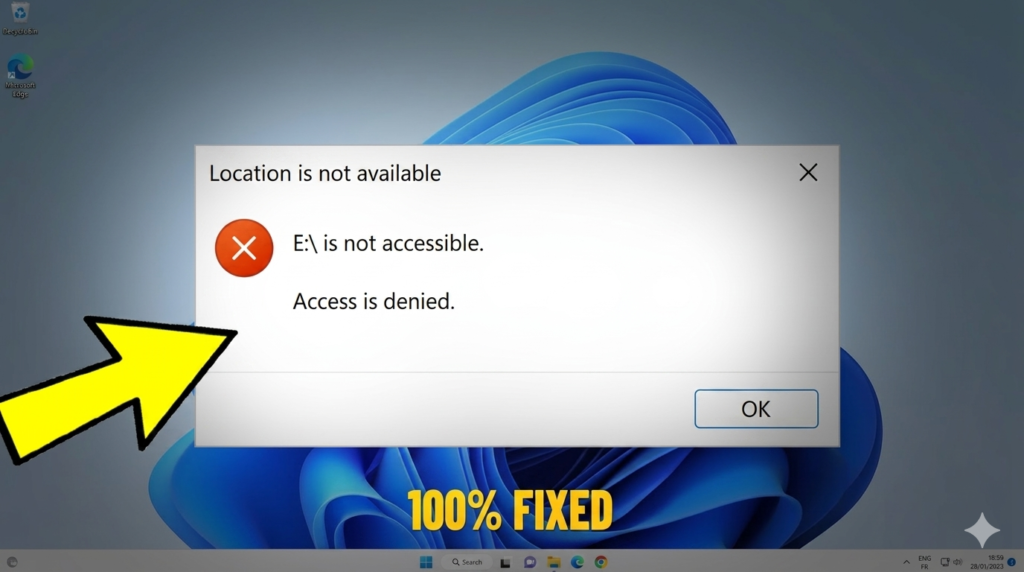
The “Access Denied” error in Windows is a common problem that stops you from opening files, folders, or apps. It usually happens when Windows blocks permission due to security settings, missing access rights, or system restrictions.
This error can appear during normal use, like opening a file or changing a folder. It can feel frustrating because everything seems fine, but Windows still denies access.
The good news is that this issue is not dangerous and is often easy to fix. In this article, you will learn simple, clear steps to solve it without any confusion, even if you are new to Windows.
What Causes “Access Denied” Error?
1. Permission Problems
- Your account does not have access rights
- Windows blocks the file for security
- You cannot open or edit restricted folders
2. Admin Rights Missing
- Some files need administrator permission
- Standard user accounts get blocked
- Apps or system files may not open without admin access
3. Antivirus Blocking
- Antivirus may wrongly block safe files
- It treats unknown files as threats
- Access gets denied until protection settings are changed
4. Corrupted System Files
- Windows system files get damaged
- File paths or permissions stop working correctly
- This leads to sudden access errors in folders or apps
Example
A shared folder from another PC or USB drive shows “Access Denied” when you try to open it
Basic Fixes You Should Try First
Run as Administrator
Sometimes Windows blocks a file because it needs higher permission to run. This usually happens with setup files, apps, and system tools. Windows does this to protect your system from unwanted changes.
When you run a file as administrator, you give it full permission to access system resources. This often removes the restriction and lets the file open without any error.
Key Points
- Gives full system permission
- Fixes blocked apps and installers
- Simple and fast solution
- Works for most setup files
Example
You try to install a software, but Windows shows “Access Denied.” You right-click and select “Run as administrator.” The installer opens and works normally.
Restart Your PC
Restarting your PC is a very simple but powerful fix. Many times, Windows faces small temporary errors in the background. These errors can stop files from opening or block permissions.
When you restart your computer, Windows refreshes all processes. It clears temporary glitches and resets system access rules. After restart, the same file may start working without any changes.
Key Points
- Clears temporary system bugs
- Refreshes Windows processes
- Fixes stuck permission errors
- No technical steps needed
Example
A folder suddenly shows “Access Denied” while working. You restart your PC. After restart, the folder opens normally.
Check File Location
Sometimes the file itself is fine, but its location causes the problem. Windows may block access from USB drives, network folders, or protected system locations.
Try opening the file from its original location. If you moved it, move it back and check again. Some files behave differently depending on where they are stored.
Key Points
- Location can cause access issues
- USB and network drives may restrict files
- Moving file can fix the error
- Helps identify source of problem
Example
You copy a file from a USB drive to Desktop. It shows “Access Denied.” But when you open it directly from the USB drive, it works fine.
Quick Permission Check
Windows may block files if your user account does not have proper permissions. This happens in shared folders or protected system files.
You can check this by opening file properties and looking at the Security tab. If your account does not have access, you may need to allow permissions or switch to an admin account.
Key Points
- Checks user access rights
- Fixes restricted folders
- Important for shared files
- Helps identify permission issues
Example
A shared folder from another PC shows “Access Denied.” You open security settings and see no access. After giving permission, the folder opens normally.
Fix File or Folder Permissions
Open Properties
- Right-click the file or folder
- Click “Properties”
- A new window will open
Go to Security Tab
- Click the “Security” tab
- You will see users and permission list
- This shows who can access the file
Edit Permissions
- Click the “Edit” button
- Select your user account
- Enable “Full Control”
- Click “Apply” then “OK”
Example
Fix access to a locked folder on D drive after changing permissions
Take Ownership of File or Folder
Ownership matters because Windows gives full control of a file or folder to a specific user or system account. If another account owns it, your account may not get permission to open, edit, or delete it.
Even if you are an admin, Windows can still block access until you become the owner. This is why taking ownership is often needed to fix “Access Denied” errors.
Steps to change owner
- Go to “Advanced Security Settings”
- Click on “Change” next to Owner
- Select your user account
- Apply changes and confirm
Tip
- This often fixes stubborn “Access Denied” issues
- Try it when normal permission changes do not work
Fix System File Problems
Run System File Checker (SFC)
System File Checker scans Windows system files and checks for missing or damaged files. It automatically repairs these files to fix system-related errors. This helps when “Access Denied” happens due to broken Windows components.
- Scans system files
- Finds missing or corrupted files
- Repairs files automatically
- Fixes Windows-related access issues
Run Disk Check
Disk Check scans your hard drive for errors and fixes them. It repairs bad sectors and file system problems that can stop Windows from reading files correctly.
- Scans hard drive for errors
- Fixes bad sectors
- Repairs file system issues
- Improves file access stability
Tip
- Use this when many files show access issues
- Helpful for repeated errors across folders or apps
Create a New User Account
Testing a new user account helps you find if the problem is only in your current Windows profile. Sometimes your main account gets corrupted or its settings break.
In that case, files and folders may show “Access Denied” even if Windows is working fine. A new account helps you confirm this in a simple way.
Key Points
- Checks if issue is only in your user profile
- Confirms if Windows system is working fine
- Identifies corrupted user settings
- Helps fix access issues without advanced steps
Example
Your main account cannot open files, but a new user account opens them normally
Advanced Fixes (Optional Section)
Group Policy Settings
- Controls Windows rules and access settings
- Used to manage permissions for users and system
- Can fix deep “Access Denied” problems
- Mainly used in professional or office PCs
Registry Permissions
- Changes hidden Windows system settings
- Can fix permission-related access errors
- Very powerful but risky if edited wrongly
- Should only be changed carefully
Warning
- Small mistake can affect system
- Wrong changes may cause system errors or instability
- Always proceed only if you understand the steps
How to Prevent “Access Denied” Error
- Do not change system permissions randomly
- Keep Windows updated regularly
- Use only trusted antivirus software
- Avoid modifying system folders or files
- Do not change ownership without need
- Be careful when moving or copying system files
Conclusion
Most “Access Denied” errors in Windows are easy to fix. In many cases, simple permission changes or basic troubleshooting solve the problem quickly. You do not need advanced skills for most situations.
Start with simple solutions first like running as administrator or checking permissions. If the issue still continues, then move to advanced steps like ownership changes or system tools.
Try each method step by step and see what works for you. Did one of these fixes solve your problem?
FAQs
How can I stop it from coming back?
Use correct permissions, avoid unnecessary system changes, keep Windows updated, and use trusted security software.
Will creating a new user fix it?
Sometimes yes. If the user profile is corrupted, a new account can solve the issue.
Can corrupted files cause this?
Yes, damaged or missing system files can trigger access problems in Windows.
Why does it happen on external drives?
External drives may have different permissions from another PC, which can block access.
Do I need to reinstall Windows to fix it?
No, most cases can be fixed using simple permission or system fixes without reinstalling Windows.
Why do I get “Access Denied” even as an admin?
Even admin accounts can face this error when file ownership or permissions block access. Windows still protects some files from full control.
Can antivirus cause this error?
Yes, antivirus can wrongly block safe files and show “Access Denied” to protect your system.
Is this error dangerous?
No, this error is not harmful. It only blocks access to files or folders.