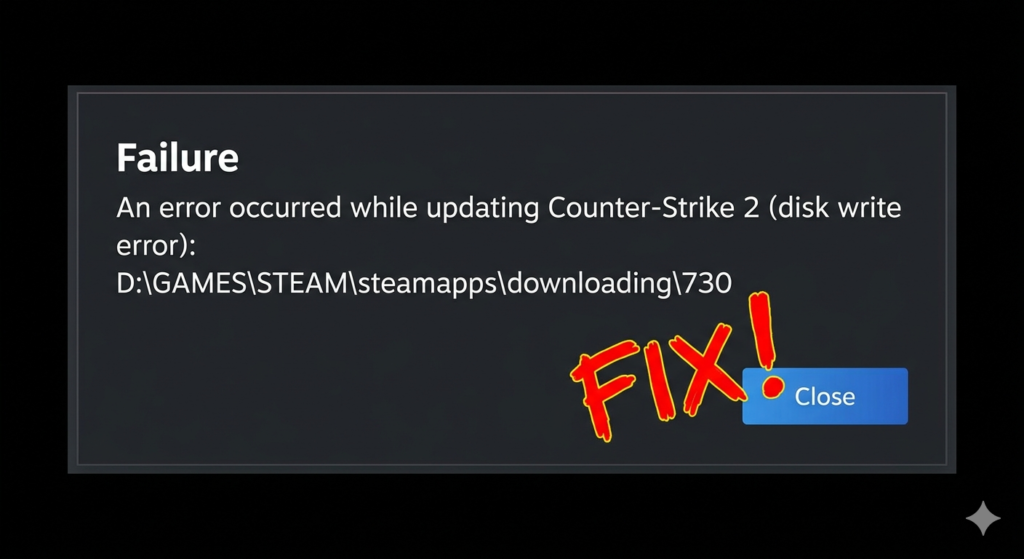
Gaming should feel smooth and easy. You should be able to download and play games without any trouble. But sometimes problems happen that stop everything. Steam is a platform where you download and play games in one place.
A disk write error is a problem where Steam cannot save game files on your computer. Because of this, your game download or update stops suddenly. This topic is important because it helps gamers fix issues quickly and get back to playing without stress.
Why does a simple game download suddenly stop without any warning?
What is a Disk Write Error?
A disk write error happens when Steam cannot save or update game files on your computer’s storage. It means the writing process gets blocked, so the download or update stops.
Key Points
- Steam cannot write data to disk
- Download or update stops suddenly
- Happens during install or update
- Often linked to storage or system issues
Real-Life Example
You are downloading a game on Steam. It reaches 90%, then suddenly stops. A disk write error message appears, and the game does not finish installing.
Main Causes of Disk Write Error:
- Low Storage Space:
Your hard drive is full. Steam cannot save new game files when there is no space. Free space is needed for smooth downloads and updates. - Corrupted Game Files:
Some files get damaged during download. This stops the game from installing properly. Even one broken file can break the whole process. - Permission Issues:
Steam does not have proper access to your disk. So it cannot write data. This happens when system settings block access. - Antivirus Blocking Steam:
Security software may block Steam. It thinks Steam files are unsafe and stops them from writing to the disk. - Download Cache Problem:
Old temporary files stay in the system. These files clash with new downloads and cause errors during updates or installs.
How to Fix Disk Write Error (Step-by-Step Guide):
- Restart Steam and PC:
Close Steam and restart your computer. This removes small bugs and refreshes the system. It also clears temporary errors that stop downloads. - Run Steam as Administrator:
Right-click Steam and choose “Run as administrator.” This gives full access to system files and disk. It helps Steam write data without permission issues. - Clear Download Cache:
Go to Steam settings and clear the download cache. This removes old and broken temporary data. It also fixes stuck or failed downloads. - Check Storage Space:
Make sure your disk has free space. Delete unused files or games to create room for new downloads. Low space is a common reason for this error. - Verify Game Files:
Steam can check and repair broken or missing game files automatically. This helps fix corrupted data without reinstalling the whole game. - Turn Off Antivirus Temporarily:
Sometimes antivirus blocks Steam. Turn it off for a short time to check if it is causing the issue. If this works, add Steam to the allowed list. - Change Download Region:
Switch to another download server in Steam settings. This helps when the current server is slow or blocked. It can improve download speed and stability.
Extra Tips to Avoid This Error
- Keep your storage clean and remove unused files regularly.
- Update Steam often to get the latest fixes.
- Do not stop downloads suddenly while games are installing or updating.
- Use a stable internet connection for smooth downloads and updates.
Common Mistakes Users Make
- Ignoring low storage space until downloads fail.
- Not updating Steam, which causes old bugs to stay.
- Closing Steam during game updates or installations, which breaks files.
Conclusion
A disk write error in Steam is a common problem. It stops game downloads or updates, but it is not hard to fix. Most of the time, the issue happens because of storage, permissions, or small system bugs.
The good news is that most fixes are simple and quick. You do not need advanced skills. You can restart Steam, clear cache, check storage, or verify game files. Try each step one by one until the problem is solved.
Now it is your turn. Which fix worked for you?
FAQS
Is disk write error serious?
No, it is not a serious problem. It looks scary, but it is usually easy to fix. Most users solve it with simple steps like restarting Steam or checking storage.
Can I lose my game data?
Rarely. In most cases, your game data stays safe. But sometimes corrupted files can cause issues. It is always a good idea to keep a backup for safety.
Does reinstalling Steam help?
Yes, it can help in some cases. Reinstalling Steam removes hidden bugs and resets settings. This can fix deep software problems that normal steps cannot solve.
Why does it happen again and again?
This error can repeat if the main cause is not fixed. Common reasons include low storage space, antivirus blocking Steam, or permission issues in your system.
Can slow internet cause this error?
Yes, sometimes slow or unstable internet can interrupt downloads. When the connection breaks, Steam may fail to write files properly, which leads to errors.
Does full disk space cause this error?
Yes. If your disk is full, Steam cannot save new game files. You need free space for smooth downloads and updates.
Can antivirus really block Steam?
Yes. Some antivirus programs mistakenly see Steam as a threat. They block file writing, which causes the disk write error during downloads or updates.
Will verifying game files always fix it?
Not always, but it helps in many cases. Verifying game files checks for missing or broken files and repairs them automatically without reinstalling the game.