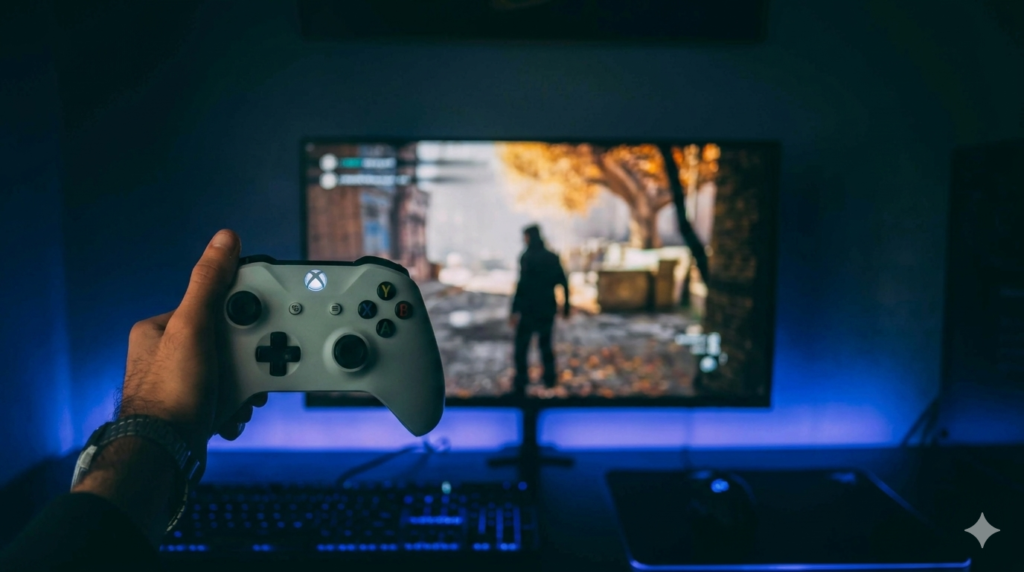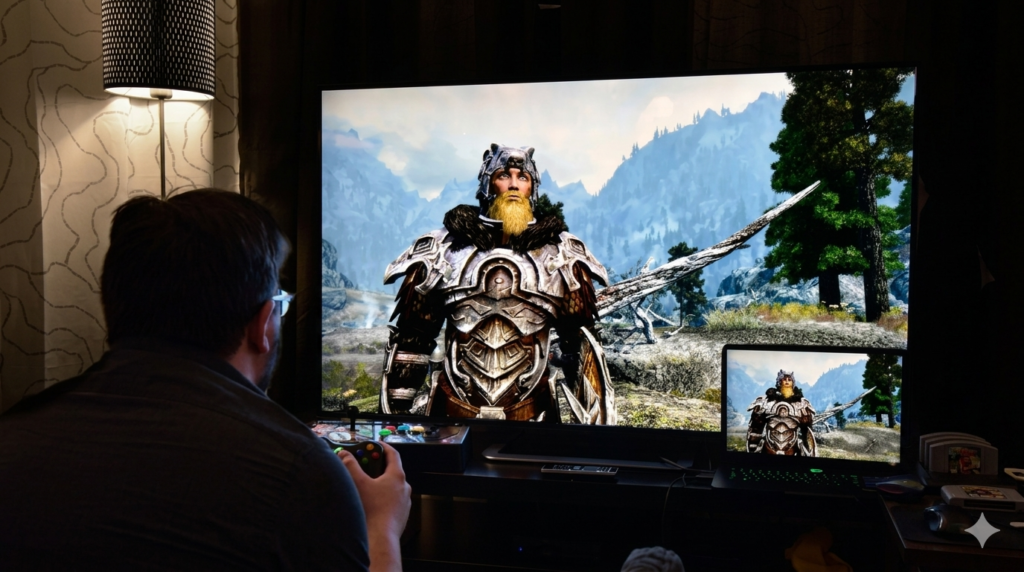
Input lag means delay between your action and what you see on the screen. You press a button, but the TV shows it a bit late. This delay may look small, but it can change your whole gaming experience.
For gamers, input lag is a big problem. It makes games feel slow and less responsive. Fast games like shooting or racing feel harder to control. Your timing becomes off, even if your skills are good.
Fixing input lag makes your gameplay smooth and fast. It helps your actions match the screen in real time. This gives you better control, faster response, and a more enjoyable gaming experience.
What Causes Input Lag on Gaming TV?
TV processing delay
- Extra picture effects slow down response time
- TV spends more time improving image quality
- This adds delay between input and screen action
- Games feel less responsive and slower
Wrong settings
- Movie, Cinema, or Vivid modes increase lag
- These modes focus on visuals, not speed
- Extra processing creates delay in response
- Fast games become harder to control
HDMI or cable issues
- Old or low-quality HDMI cables slow signal transfer
- Some cables cannot handle fast gaming data
- Wrong HDMI port can also increase lag
- This reduces smooth gameplay performance
Internet delay (for online games)
- WiFi can cause unstable connection
- Walls and distance increase lag spikes
- Interference affects gaming performance
- Wired LAN cable gives faster and stable connection
Best Ways to Fix Input Lag
Turn On Game Mode
Game Mode is a built-in TV setting made for gaming. It reduces extra processing and makes the TV respond much faster. It removes effects that slow down your screen response.
You can find it in picture or display settings on most TVs. Turning it ON is the first and most important step for fixing input lag.
Key Points
- Find Game Mode in settings
- Reduces extra processing
- Improves response speed
Example
FPS games feel much faster. Your movement and aim respond instantly without delay.
Use Correct HDMI Port
HDMI ports are not equal in speed. HDMI 2.0 and HDMI 2.1 ports are designed for gaming performance. They carry data faster and reduce delay. Always connect your console directly to the TV. Avoid splitters, converters, or extra devices.
Key Points
- Use HDMI 2.0 or 2.1 port
- Direct TV connection is best
- Avoid splitters or adapters
Example
Racing games feel smoother. Car movement reacts faster when you steer.
Turn Off Extra Picture Settings
TVs use extra visual effects to make images look better. These include motion smoothing, noise reduction, and dynamic contrast. These effects increase processing time and cause lag. Turning them off makes your TV respond faster.
Key Points
- Motion smoothing OFF
- Noise reduction OFF
- Dynamic contrast OFF
Example
Action games feel more real-time. Your actions match what you see instantly.
Use Wired Internet for Online Gaming
WiFi is not always stable. Walls, distance, and interference can cause lag spikes. A LAN cable gives a direct and stable connection. It improves online gaming performance and reduces delay.
Key Points
- LAN cable more stable than WiFi
- Reduces lag spikes
- Better for online matches
Example
In games like COD or Fortnite, movement stays smooth even during intense fights.
Enable Low Latency Mode (ALLM)
ALLM stands for Auto Low Latency Mode. It automatically switches your TV to gaming mode when you start playing. This removes extra delay without manual settings. It is a very useful feature if your TV supports it.
Key Points
- Automatically reduces delay
- Switches TV to gaming mode
- Works on supported devices
Example
You start a game, and it instantly feels faster and more responsive.
Update TV Software
TV software updates fix bugs and improve performance. Sometimes manufacturers improve gaming speed in updates. Keeping your TV updated ensures better response time and stability.
Key Points
- Check updates in settings
- Fixes performance issues
- Improves system speed
Example
After an update, menus open faster and games feel smoother.
Check Controller and Console Settings
Sometimes the problem is not the TV. The controller can also cause delay. Low battery or weak Bluetooth connection can slow response. Restarting or reconnecting the controller can fix the issue quickly.
Key Points
- Reconnect or restart controller
- Use wired mode if possible
- Check battery level
Example
A low battery controller may respond late in fast shooting games, affecting your aim.
Advanced Tips to Reduce Input Lag
Lower resolution if needed
- 4K uses more processing than 1080p
- 1080p can give faster response on some TVs
- Good option for older or budget TVs
- Helps reduce load on TV hardware
- Can improve smoothness in fast games
Use gaming monitor mode (if available)
- Some TVs have “PC Mode” or “Game Mode Plus”
- This reduces extra image processing
- It helps improve response speed in games
- Makes controls feel more direct
- Best for competitive gaming setup
Keep TV firmware optimized
- Always use official stable updates
- Avoid beta or unstable software versions
- Updated firmware improves performance and fixes bugs
- Can reduce hidden input delay issues
- Keeps gaming experience stable over time
Common Mistakes Gamers Make
- Using Cinema Mode instead of Game Mode
- Using WiFi for competitive gaming instead of LAN cable
- Using wrong HDMI ports that don’t support high-speed gaming
- Not updating TV firmware regularly
- Keeping motion smoothing or extra effects ON during gaming
- Using low-quality HDMI cables that slow signal transfer
- Playing competitive games on unstable internet connection
- Ignoring controller battery level or connection issues
Conclusion
Input lag can make gaming slow and frustrating, but it is easy to fix in most cases. Small TV settings and simple changes can improve your gaming speed a lot. You do not always need new hardware to solve the problem.
The best starting point is Game Mode. It reduces extra processing and gives the fastest response. After that, turning off extra picture effects, using the right HDMI port, and switching to a wired connection can make a big difference.
Even small changes can improve your gameplay a lot. You may feel faster controls, smoother movement, and better reaction time in games.
Which fix worked best for you?
FAQS
Why is my TV lagging even in Game Mode?
Even Game Mode can have lag on some TVs. Old TVs have higher base delay. A weak HDMI cable can also slow the signal. Sometimes the console or controller also causes the delay.
Does HDMI cable quality affect input lag?
Yes, it can affect performance. Low-quality HDMI cables may not send data fast enough. This can create small delays in fast games. A good HDMI 2.0 or 2.1 cable works better.
Is WiFi bad for gaming?
WiFi is fine for casual gaming. But it is not stable for competitive gaming. Walls and distance can cause lag spikes. A LAN cable gives a more stable connection.
Can all TVs fix input lag?
No, not fully. New TVs have low latency features. Older TVs already have high input lag. Settings can improve it, but not remove it completely.
What is the best TV setting for gaming?
The best setup is Game Mode ON, Low Latency Mode ON, and motion effects OFF. These settings reduce delay and make controls faster.
Why does my game feel slow even with good internet?
Good internet does not always mean low lag. TV settings and HDMI issues can still cause delay. Controller response can also affect speed.
Can a controller cause input lag?
Yes, it can. Low battery or weak Bluetooth connection can slow response. A wired controller usually gives faster input.
Does screen size affect input lag?
Not directly. But some large TVs process more image data. This can slightly increase delay on older models.