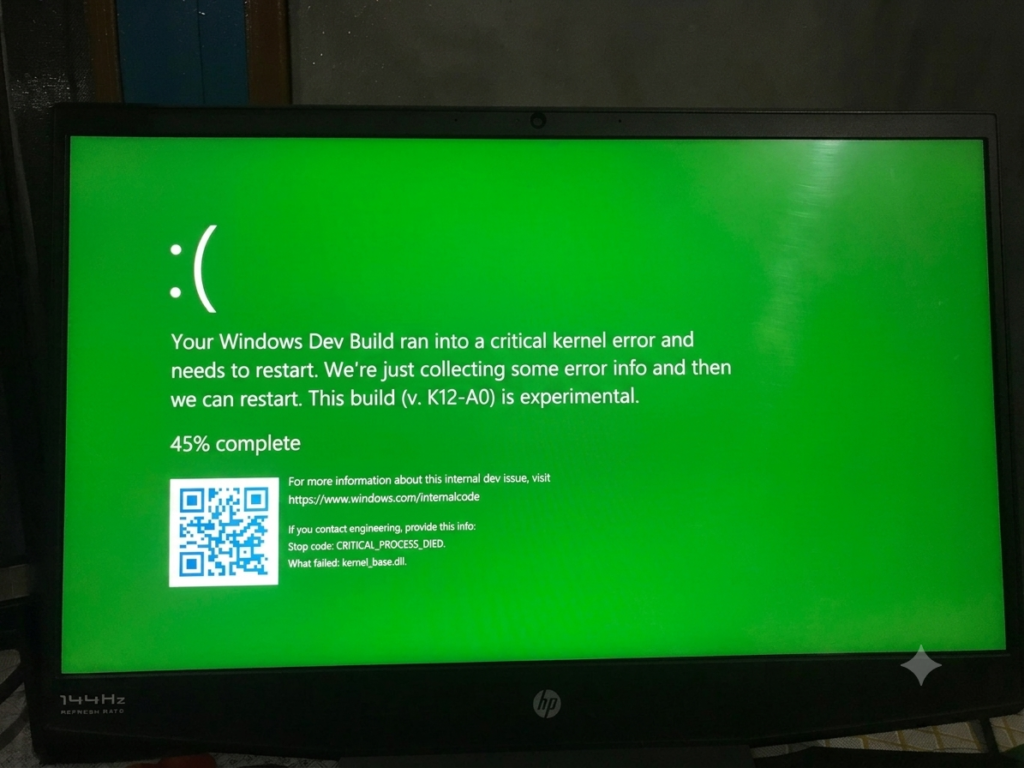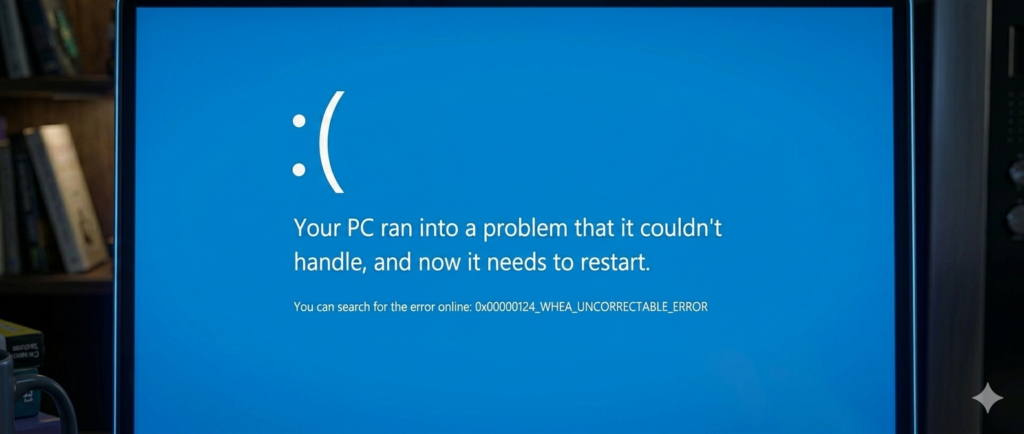
Blue Screen of Death (BSOD) is a serious Windows error that suddenly stops your computer from working. It appears when Windows finds a major system problem and shuts down to protect your files and hardware.
On Windows 11, BSOD can look scary. The screen turns blue, shows an error message, and your PC restarts without warning. But in most cases, it does not mean your PC is permanently damaged. It is often caused by software or driver issues that you can fix at home.
This article will help you understand why BSOD happens and how to fix it step by step. You will learn simple methods to bring your system back to normal and prevent the problem from coming again.
Why BSOD Happens in Windows 11
Common Causes
- Bad or outdated drivers can break system communication and trigger a crash
- Windows update problems can create conflicts in system files
- Corrupted system files can stop Windows from running properly
- Hardware issues like faulty RAM, SSD, or HDD can force a shutdown
- Overheating can push your system beyond safe limits and cause BSOD
Example for Understanding
- A printer driver crashes → Windows cannot control the device → system stops → BSOD appears
Basic Fixes You Should Try First
Restart Your PC
Restarting your PC is the first and most important step when you see a BSOD. It helps clear temporary errors in Windows memory.
It also stops stuck processes that may be causing the crash. Many BSOD issues happen only once and do not return after a restart. This makes it a very simple but powerful fix.
Key Points
- Clears temporary system errors
- Fixes stuck background processes
- Often solves one-time BSOD crashes
- Very quick and easy step
Example
Your PC suddenly shows a blue screen while opening a browser. After restarting, the system works normally and the error does not appear again.
Remove External Devices
External devices can sometimes confuse your system and cause crashes. A faulty USB, printer, keyboard, or external hard drive can send bad signals to Windows.
This can lead to BSOD errors. Removing all external devices helps you check if the problem is coming from outside hardware.
Key Points
- External devices can trigger system conflicts
- Faulty USB or drives may crash Windows
- Helps isolate hardware problems
- Easy way to test system stability
Example
Your PC starts crashing after you plug in a USB drive. When you remove it, the system stops crashing and works fine again.
Boot into Safe Mode
Safe Mode is a special Windows mode that runs only essential drivers and services. It helps you check if the problem is caused by software or drivers.
If your PC works fine in Safe Mode, it means something installed in normal mode is causing the BSOD. This makes troubleshooting much easier.
Key Points
- Starts Windows with only basic drivers
- Helps detect software or driver issues
- Useful for troubleshooting BSOD problems
- Allows safe removal of faulty apps or drivers
Example
Your PC keeps crashing in normal mode, but it runs without problems in Safe Mode. This shows that a recently installed driver or app is causing the issue.
Driver Fixes (Very Common Solution)
Update Drivers
Drivers help Windows connect with hardware like graphics cards and network devices. If drivers are old or broken, they can cause BSOD. Updating them keeps your system stable and reduces crashes.
Graphics and network drivers are the most important to update first because they affect gaming and internet use.
Key Points
- Drivers connect hardware with Windows
- Old drivers can cause BSOD
- Graphics and network drivers are key
- Updates improve stability
Example
Your PC crashes while gaming or watching videos. After updating the graphics driver, the issue stops.
Roll Back Drivers
Sometimes a new driver update causes problems instead of fixing them. In that case, you can roll back to the previous version. This removes the bad update and brings back a stable driver.
Key Points
- New drivers can be unstable
- Roll back restores old working version
- Useful after recent updates
- Helps stop new crashes
Example
After updating your network driver, your PC starts showing BSOD. Rolling back fixes the problem.
System File Fixes
Run SFC Scan
SFC scan checks your Windows system files. It finds broken or missing files and repairs them automatically.These files are important for Windows to run smoothly.
If they get damaged, BSOD can happen. Running SFC is a safe and easy way to fix system errors.
Key Points
- Repairs broken Windows files
- Fixes missing system files
- Helps stop BSOD caused by corruption
- Safe built-in tool
Example
Your PC shows BSOD after a failed update. You run SFC scan, and Windows repairs the damaged files.
Run DISM Tool
The DISM tool fixes deeper Windows problems that SFC cannot repair. It repairs the Windows image itself, which is like the base system. If this image is damaged, your PC can crash again and again.
Key Points
- Fixes deeper system image issues
- Works when SFC is not enough
- Repairs Windows core system
- Improves system stability
Example
SFC scan does not fix the issue, but the DISM tool repairs the system and stops repeated BSOD crashes.
Check Hardware Problems
RAM Issues
RAM helps your computer run programs smoothly. If RAM is faulty, your PC can crash randomly.You may see freezing, slow performance, or sudden BSOD errors. This usually happens without warning.
Key Points
- Faulty RAM causes random crashes
- Can lead to freezing and BSOD
- Problems happen suddenly
- Needs testing to confirm issue
Example
Your PC freezes while opening apps, then shows a blue screen due to bad RAM.
Storage Drive Problems
Your storage drive (HDD or SSD) stores Windows and files. If it is damaged, Windows cannot read data properly. This causes slow boot, file errors, and frequent crashes.
Key Points
- Damaged drive causes system instability
- Leads to slow startup and errors
- Can trigger BSOD
- Needs disk check tools
Example
Your PC takes too long to start, and sometimes crashes with a blue screen due to a failing SSD.
Overheating
Overheating happens when your PC gets too hot. This can damage performance and force Windows to stop working. High heat puts stress on CPU and GPU, which can lead to BSOD.
Key Points
- High temperature causes instability
- CPU and GPU get overloaded
- Can trigger sudden shutdown or BSOD
- Happens more during gaming
Example
While gaming, your laptop becomes very hot and suddenly shows a blue screen and restarts.
Advanced Fixes (If Problem Continues)
Check Disk (CHKDSK)
CHKDSK checks your hard drive for errors and fixes them. It helps repair bad sectors that may cause crashes. This tool is useful when storage problems trigger BSOD.
Key Points
- Finds disk errors and bad sectors
- Repairs storage-related issues
- Helps stop repeated crashes
- Built-in Windows tool
Example
Your PC crashes while opening files. CHKDSK finds disk errors and fixes them.
System Restore
System Restore takes your PC back to a previous working state. It removes recent changes that may have caused BSOD, like bad updates or drivers.
Key Points
- Restores previous system state
- Removes harmful changes
- Useful after updates or installs
- Does not delete personal files
Example
After installing new software, your PC starts crashing. System Restore brings it back to normal.
Reset Windows 11
Reset Windows is the last option when nothing else works. It reinstalls Windows and removes all system problems. You can choose to keep your personal files or remove everything.
Key Points
- Reinstalls Windows completely
- Fixes deep system issues
- Last troubleshooting step
- Can keep personal files
Example
Your PC keeps showing BSOD even after all fixes. Resetting Windows makes it stable again.
How to Read BSOD Error Codes
What Error Codes Mean
When BSOD appears, Windows shows a stop code. This code tells you what went wrong in a simple technical way.Each code points to a different type of issue like memory, drivers, or system files. These codes help you understand the real cause of the crash instead of guessing.
Why It Helps
- Helps find the exact problem quickly
- Removes guessing and confusion
- Guides you to the right fix
- Saves time in troubleshooting
Prevention Tips
- Keep Windows updated regularly
- Install only trusted and official drivers
- Clean your PC from dust often
- Avoid heavy overheating during use
- Do not install unknown or unsafe software
Conclusion
BSOD on Windows 11 looks serious, but it is usually fixable. Most problems come from drivers, system files, or small hardware issues. You can solve many of them with simple fixes at home.
Always start with basic steps like restarting your PC and updating drivers. Then move to advanced fixes if needed. Most users fix the issue without reinstalling Windows.
Stay calm and follow steps one by one. Do not rush.
FAQs Section
How do I stop BSOD from coming again?
You can reduce BSOD by keeping Windows and drivers updated, avoiding overheating, using trusted software, and checking your hardware regularly.
Can low RAM cause BSOD?
Yes, low or faulty RAM can cause crashes and BSOD because Windows cannot properly manage running programs.
Why does BSOD happen during gaming?
BSOD during gaming usually happens due to overheating, GPU driver issues, or heavy system load that your hardware cannot handle.
Can antivirus cause BSOD?
Yes, sometimes antivirus software can conflict with system files or drivers and cause BSOD, especially if it is outdated or unstable.
Do I need to reinstall Windows every time?
No, reinstalling Windows is not needed in most cases. Simple fixes like driver updates or system scans usually solve the issue.
Is BSOD a hardware or software problem?
BSOD can be both. Most cases come from software like drivers or Windows files. But sometimes hardware like RAM or SSD can also cause it.
Can BSOD damage my PC?
BSOD itself does not damage your PC. It is a safety feature. It stops Windows to protect your system from bigger damage.
Why does BSOD happen suddenly?
BSOD can happen suddenly because of driver errors, system file corruption, or hardware issues. Sometimes a small update or a faulty program can trigger it without warning.