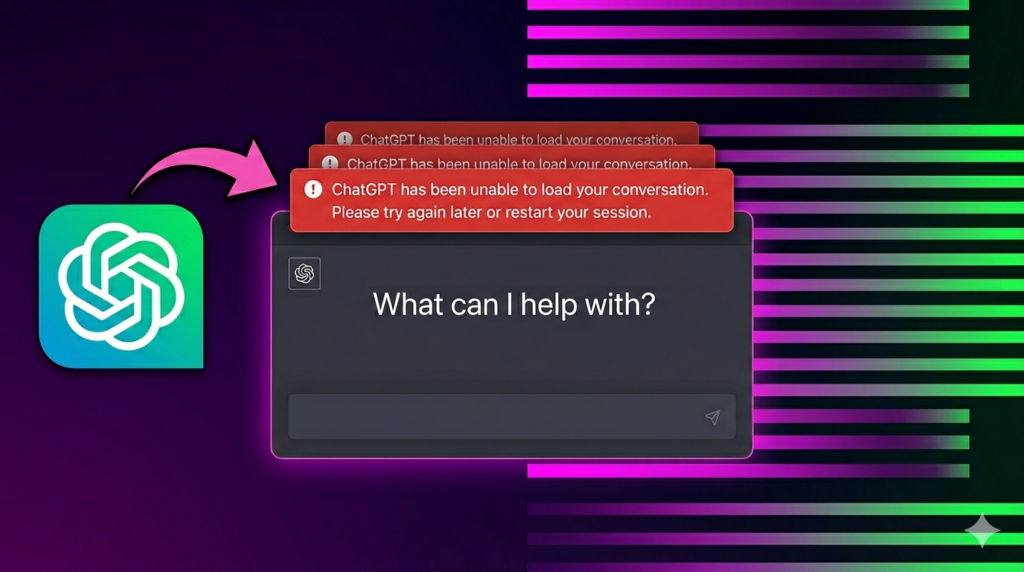
ChatGPT is a powerful AI tool, but sometimes conversations suddenly stop loading. You may see a blank screen, endless loading circle, or missing chats. This problem can feel annoying, especially when you need important messages quickly.
The good news is that this issue is usually easy to fix. In many cases, simple steps like refreshing the page, checking your internet, or clearing browser cache can solve the problem within minutes.
In this article, you will learn the most common reasons why ChatGPT conversations do not load and the best ways to fix them. Whether you use ChatGPT on a PC, phone, or tablet, these solutions will help you get your chats working again fast.
What Does “Conversation Not Loading” Mean?
“Conversation not loading” means ChatGPT cannot open or display your chats properly. You may see endless loading, a blank screen, or missing messages.
This issue usually happens because of internet problems, browser issues, server downtime, or temporary app glitches.The problem can happen on both mobile phones and desktop computers.
Common Symptoms
- Chat history not showing
- Messages stuck loading
- White or blank screen
- Error messages appearing
- ChatGPT freezing or slowing down
- Conversations disappearing suddenly
The good news is that most of these problems are easy to fix with simple troubleshooting steps.
Why ChatGPT Conversations Fail to Load
ChatGPT conversations may stop loading because of internet issues, browser problems, server downtime, or temporary device glitches. In most cases, the problem is temporary and can be fixed with simple troubleshooting steps.
Common Reasons
- Poor Internet Connection
Slow or unstable internet can stop chats from loading properly. - OpenAI Server Problems
Sometimes the servers are busy, down, or under maintenance. - Browser Cache Issues
Old cache and cookies may break the website and cause loading errors. - Outdated Browser
Older browsers may not support the latest ChatGPT updates. - Extensions Causing Problems
Ad blockers, VPNs, and privacy tools can interfere with loading. - Account Login Problems
Session errors may stop conversations from opening correctly. - Device Glitches
Temporary bugs on your phone or computer can affect ChatGPT.
Real-Life Example
Imagine opening ChatGPT during peak hours to continue an important chat. Instead of loading your conversation, you only see a spinning loading icon for several minutes. This can happen because of server traffic, weak internet, or browser issues.
How to Fix ChatGPT Conversation Not Loading
If ChatGPT conversations are not loading, do not panic. Most problems are caused by small issues like internet errors, browser glitches, or temporary server downtime. The good thing is that many fixes only take a few minutes. Start with simple solutions first, then move to advanced fixes if needed.
1. Refresh the Page
Refreshing the page is the fastest and easiest fix. Sometimes ChatGPT fails to load because the page did not open properly. A quick refresh reloads the website and removes temporary glitches.
Keyboard Shortcuts for Refresh
- Press F5 on Windows
- Press Ctrl + R on Windows
- Press Command + R on Mac
Tip
Try refreshing the page 2–3 times before trying other fixes
2. Check Your Internet Connection
ChatGPT needs a stable internet connection to load conversations correctly. Slow Wi-Fi or weak mobile data can stop chats from opening.
Things to Check
- Test your Wi-Fi or mobile data
- Restart your internet router if needed
- Move closer to the Wi-Fi signal
Example
Open YouTube or another website to check if your internet is working properly
3. Check OpenAI Server Status
Sometimes the problem is not on your side. ChatGPT servers may be down, overloaded, or under maintenance. When this happens, conversations may not load for many users.
What You Should Do
- Check the OpenAI server status page
- Look for outage or maintenance updates
- Wait a few minutes and try again
Tip
Server issues are usually temporary and get fixed quickly
4. Log Out and Log Back In
Your login session may become corrupted or expire. Logging out and signing back in refreshes your account session and often fixes loading problems.
Step-by-Step
- Log out of your ChatGPT account
- Close the browser completely
- Open ChatGPT again
- Sign back into your account
5. Clear Browser Cache and Cookies
Browsers save temporary files called cache and cookies to load websites faster. Sometimes these files become corrupted and stop ChatGPT from working properly.
Basic Steps
- Open browser settings
- Go to privacy or browsing data section
- Clear cache and cookies
- Restart the browser
Supported Browsers
- Google Chrome
- Microsoft Edge
- Mozilla Firefox
Tip
This fix solves many ChatGPT loading problems quickly
6. Try Another Browser
Some browsers may have compatibility problems with ChatGPT. Switching to another browser can help identify the issue.
Suggested Browsers
- Google Chrome
- Microsoft Edge
- Firefox
Example
If ChatGPT does not work on Firefox, try opening it in Chrome
7. Disable Browser Extensions
Browser extensions can sometimes block scripts that ChatGPT needs to run. This is common with ad blockers, VPNs, and privacy tools.
Common Problem Extensions
- Ad blockers
- VPN extensions
- Privacy tools
Tip
Disable extensions one by one to find the one causing the issue
8. Restart Your Device
Restarting your device clears temporary bugs and refreshes system processes. This simple step can fix many loading issues.
Devices You Can Restart
- Windows PC
- Mac
- Android phone
- iPhone
9. Update Your Browser or App
Old browser or app versions may not support the latest ChatGPT updates. Keeping your software updated improves performance and fixes bugs.
Tip
Older versions may fail to load new ChatGPT features properly
10. Use Incognito or Private Mode
Incognito or Private Mode opens your browser without using stored cache, cookies, or most extensions. This helps you check if the problem is caused by browser settings or saved data.
Key Points
- Ignores old cache and cookies
- Disables many browser extensions automatically
- Helps identify browser-related problems
- Useful for quick testing without changing settings
Example
Open ChatGPT in Incognito Mode and check if conversations load normally
11. Try ChatGPT on Another Device
Trying ChatGPT on another device helps you find out whether the issue is with your account or your current device. This is a simple way to narrow down the real cause of the problem.
Key Points
- Test ChatGPT on another phone, tablet, or computer
- Helps identify device-related issues
- Useful for checking browser or system problems
- Can confirm whether your account is working properly
Example
If ChatGPT works on your phone but not on your laptop, the problem is likely with your browser or computer
12. Contact OpenAI Support
If none of the fixes work, contact OpenAI Support for help. This should be your final troubleshooting step.
Details to Provide
- Explain the problem clearly
- Share screenshots if possible
- Include any error messages you see
- Mention which browser or device you are using
Tips to Prevent ChatGPT Loading Problems
- Keep your browser updated to the latest version
- Avoid installing too many browser extensions
- Clear browser cache and cookies regularly
- Use a stable and strong internet connection
- Do not open too many tabs at the same time
- Restart your browser when it becomes slow
- Log out and log in if issues start appearing
- Use trusted browsers like Chrome or Edge
Common Mistakes Users Make
- Refreshing the page too many times in a short time
- Using unstable or slow VPN connections
- Ignoring browser updates for long periods
- Keeping too many tabs open while using ChatGPT
- Not checking internet connection before troubleshooting
- Installing too many extensions without testing compatibility
Conclusion
ChatGPT loading issues are usually small and easy to fix. Most problems happen because of internet, browser, or temporary system errors. Start with simple steps like refreshing the page and checking your internet first.
If needed, try other fixes like clearing cache or changing the browser. Most of the time, the issue is temporary and gets fixed quickly.
Final Advice
“Start with refreshing the page and checking your internet. Most ChatGPT loading problems are fixed within minutes.”
FAQs
Why are my old conversations missing?
This can happen because of sync delays or temporary server glitches. In most cases, chats return after a short time.
Can browser cache stop ChatGPT from loading?
Yes. Corrupted cache or cookies can stop the site from working properly.
Does VPN affect ChatGPT?
Yes, sometimes VPNs can slow down or block the connection, causing loading issues.
Why does ChatGPT work on mobile but not PC?
This usually happens because of browser problems, outdated software, or extensions on the PC.
Can OpenAI server downtime cause this issue?
Yes. If servers are down or under maintenance, conversations may not load for many users.
Is clearing cache safe?
Yes, it is safe. But you may need to log in again after clearing it.
Do I need to reinstall my browser?
No, in most cases you don’t need to reinstall. Simple fixes usually solve the problem.