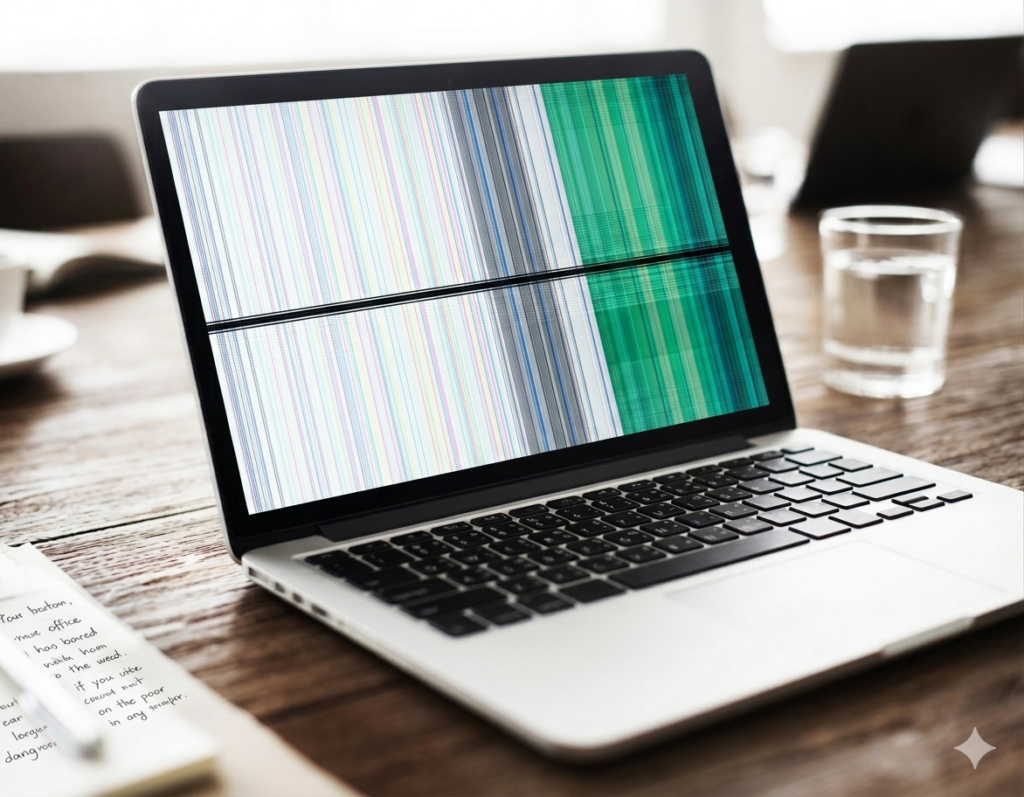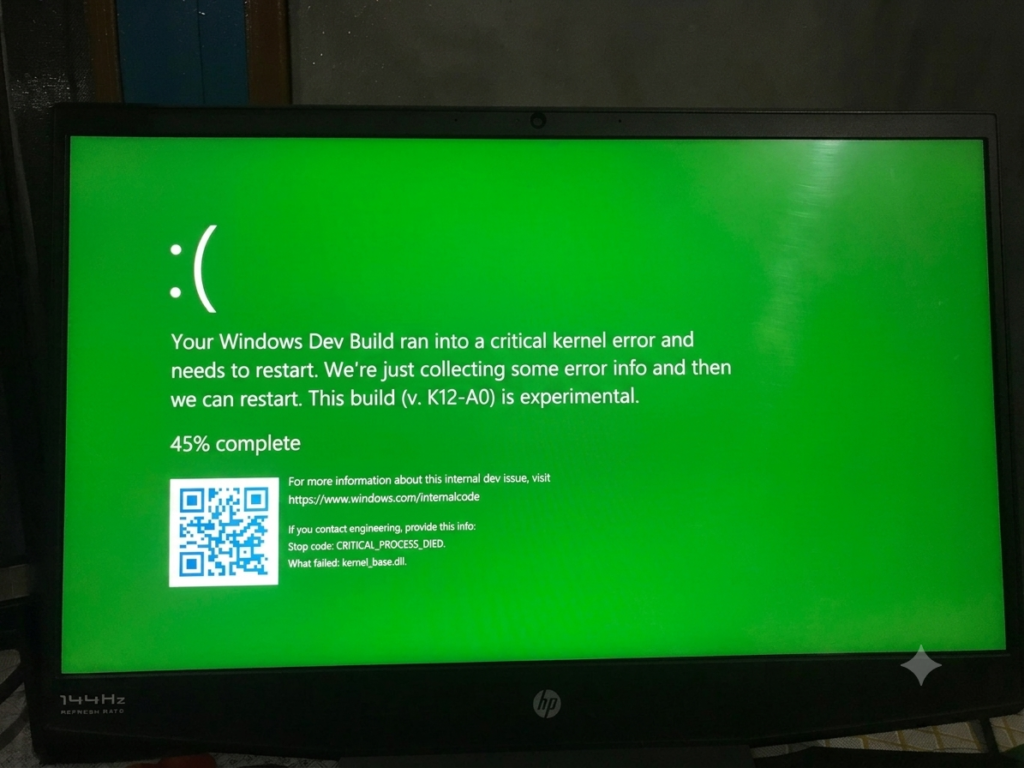
A laptop green screen can look scary at first. Your display may suddenly turn green, flicker, or show strange colors instead of a normal screen. This problem can make it hard to watch videos, play games, work, or even use your laptop properly. The good news is that most green screen problems are not permanent.
In many cases, simple fixes like updating drivers, changing display settings, or restarting the laptop can solve the issue. In this article , you will learn the common causes of a laptop green screen and the easiest ways to fix it step by step.
What Causes a Green Screen?
A laptop green screen can happen for different reasons. Sometimes the problem is small and easy to fix. Other times, it may be caused by hardware damage. Here are the most common causes:
Software Problems
- Old graphics drivers may stop working properly
- Broken or corrupted drivers can cause display issues
- Windows updates sometimes create screen bugs
- Wrong display or color settings may add a green tint
- Software conflicts can affect screen colors
Hardware Problems
- A loose display cable can disturb screen signals
- A damaged laptop screen may show green colors
- GPU (graphics chip) problems can affect the display
- Internal parts may fail after drops or physical damage
Heat or Overuse
- Overheating can create screen glitches
- Heavy gaming for long hours may stress the GPU
- Poor airflow can make the laptop too hot
- Dust inside vents can increase heat problems
Quick Tip
Ask yourself these questions:
- Did the problem start after a Windows update?
- Did your laptop fall or get hit recently?
- Does the screen turn green during gaming or videos?
These small clues can help you find the real cause faster.
Basic Fixes You Should Try First
Before trying difficult solutions, start with these basic fixes. Many laptop green screen problems happen because of small software bugs, loose connections, or temporary system errors. These quick methods are beginner-friendly and do not need special technical skills.
Restart Your Laptop
- Shut down your laptop completely
- Wait for 20–30 seconds
- Turn the laptop back on
A simple restart can refresh the system and remove temporary display bugs. Sometimes the graphics driver stops working properly for a short time, and restarting helps reset it.
You should also:
- Close all background apps before restarting
- Avoid forcing shutdown unless the laptop freezes
- Check if the green screen appears again after reboot
If the issue disappears after restarting, then the problem was likely temporary software confusion.
Check Display Cable (If Using an External Monitor)
If you use your laptop with a monitor or TV, the issue may come from the display cable instead of the laptop itself.
Try these steps:
- Disconnect the HDMI or VGA cable
- Reconnect it properly
- Make sure the cable is not bent or damaged
- Try another cable if available
- Test your laptop on another monitor or TV
A loose or damaged cable can interrupt video signals and create a green screen, flickering display, or strange colors.If another monitor works normally, then your first monitor or cable may be faulty.
Remove External Devices
External devices can sometimes create driver conflicts or system problems. Removing them helps you check if one of them is causing the issue.
Disconnect:
- USB drives
- External keyboards or mouse
- Gaming controllers
- USB hubs or adapters
- External webcams or accessories
After unplugging everything:
- Restart your laptop
- Check if the green screen is still there
This step is important because outdated external device drivers can affect display performance.
Example
If your laptop screen becomes normal after unplugging the HDMI cable, then the problem was likely caused by the cable or external monitor connection.
Fix Graphics Driver Issues
Graphics driver problems are one of the most common reasons behind a laptop green screen. Updating or reinstalling the driver can often fix the issue quickly.
Update Graphics Drivers
- Press Windows + X
- Open Device Manager
- Click Display Adapters
- Right-click your graphics driver
- Select Update Driver
- Choose Search automatically for drivers
After updating:
- Restart your laptop
- Check if the green screen disappears
This fix is useful if the issue started after a Windows update or software problem.
Reinstall Graphics Drivers
- Open Device Manager
- Go to Display Adapters
- Right-click the graphics driver
- Click Uninstall Device
- Restart your laptop
Windows will usually install a fresh graphics driver automatically after restart.
Quick Tip
If your laptop screen turns green during gaming, videos, or after an update, the graphics driver may be outdated or corrupted.
Fix Display Settings
Sometimes a laptop green screen happens because of wrong display settings. Small changes in color, resolution, or filters can affect how your screen looks. Resetting settings often fixes the problem.
Reset Color Settings
- Open display or color settings
- Find Color Profile option
- Restore default color profile
- Apply changes
- Restart your laptop
This brings back normal screen colors if settings were changed by mistake or software issue.
Check Resolution
- Open Display Settings
- Go to Screen Resolution
- Select Recommended resolution
- Apply changes
- Restart system if needed
Wrong resolution can cause color issues, blur, or screen glitches. Setting it to recommended mode helps stabilize the display.
Turn Off Special Display Effects
- Turn off Night Light mode
- Disable color filters
- Turn off any screen enhancement tools
- Check if any third-party display app is active
- Restart laptop after changes
These effects can sometimes create a green or yellow tint on the screen.
Simple Question
Does the green screen appear after changing display settings?
Check Overheating Issues
Overheating is a common reason for laptop green screen problems. When your laptop gets too hot, the graphics system can start showing errors, flickers, or color issues.
Clean Laptop Vents
- Turn off your laptop
- Clean air vents using soft brush or air blower
- Remove dust carefully
- Make sure airflow is not blocked
Dust can trap heat inside and cause screen problems.
Use Cooling Pad
- Place laptop on a cooling pad
- Keep it on a flat surface
- Make sure fans are working properly
- Use it during gaming or long work sessions
A cooling pad helps reduce temperature and keeps performance stable.
Close Heavy Apps
- Close games you are not using
- Stop background apps
- Open Task Manager and end heavy tasks
- Restart laptop if needed
Too many heavy apps can increase GPU load and cause overheating.
Example
A laptop used for long gaming sessions may show a green screen due to heat buildup in the system.
Advanced Fixes (Hardware Checks)
If basic fixes do not work, the problem may be inside the laptop. These issues are related to hardware parts. They usually need expert repair.
Internal Cable Issue
- Screen cable inside laptop may be loose
- Display signal may not pass properly
- Screen can show green tint or flicker
- Happens after drops or rough use
Fix usually requires opening the laptop and reconnecting the cable.
GPU Failure
- Graphics chip may be damaged
- Screen colors become unstable
- Green screen may appear even at startup
- Performance may also slow down
This is a serious issue and needs professional repair or replacement.
Screen Damage
- Laptop display panel may be faulty
- Physical damage can cause color issues
- Green tint or lines may appear on screen
- Problem stays even after software fixes
Screen replacement is often the only solution.
Tip
These problems are not simple software issues. A technician should check the laptop for proper diagnosis and safe repair.
When to Seek Repair Help
Sometimes the green screen problem is not simple. If basic and advanced fixes do not work, the issue may need professional repair.
Green Screen Stays After All Fixes
- You tried all fixes but the screen is still green
- Restart and updates did not solve the issue
- Problem appears every time you turn on the laptop
- Screen stays abnormal even in safe mode
- No improvement after driver reinstall
Screen Flickers Constantly
- Screen keeps blinking or flashing
- Colors change again and again
- Display becomes unstable during use
- Happens in games, videos, or normal use
- Issue gets worse over time
Laptop Was Dropped or Damaged
- Problem started after a fall or hit
- Screen shows damage or strange colors
- Laptop behaves normally before the accident
- Internal parts may be affected
- Issue cannot be fixed with software steps
Tips to Prevent Green Screen
- Keep graphics drivers updated regularly
- Avoid using laptop in overheating conditions
- Clean laptop vents to remove dust buildup
- Do not run too many heavy apps at the same time
- Restart your laptop often to refresh system performance
Conclusion
A green screen on a laptop is a common issue that many users face. In most cases, the problem is related to software, not serious hardware damage. Simple steps like restarting the laptop, updating graphics drivers, or adjusting display settings can often fix it quickly.
That is why it is always best to start with easy solutions first before trying advanced repairs. However, if the issue continues after all fixes, it may point to hardware damage and you should get professional help.
Did your laptop green screen get fixed with a simple restart or driver update?
FAQS
Can a green screen fix itself?
No, it usually does not fix itself. It normally needs a restart or proper troubleshooting steps to solve the issue.
Is it a serious problem?
Not always. In most cases, it is caused by simple software issues like drivers or settings.
Can updating Windows fix it?
Yes, sometimes a Windows update can fix display bugs and remove screen errors.
Do I need to replace my laptop?
No, replacement is not needed in most cases. Only rare hardware failures require a new device.
Can overheating cause a green screen?
Yes, overheating can affect the graphics system and cause screen color problems.
Will reinstalling drivers help?
Yes, reinstalling graphics drivers often fixes corrupted or broken display issues.
Can external monitors help find the issue?
Yes, they help you check if the problem is in the laptop screen or internal hardware.
Should I go to a technician?
Yes, you should visit a technician if all fixes fail or if hardware damage is suspected.