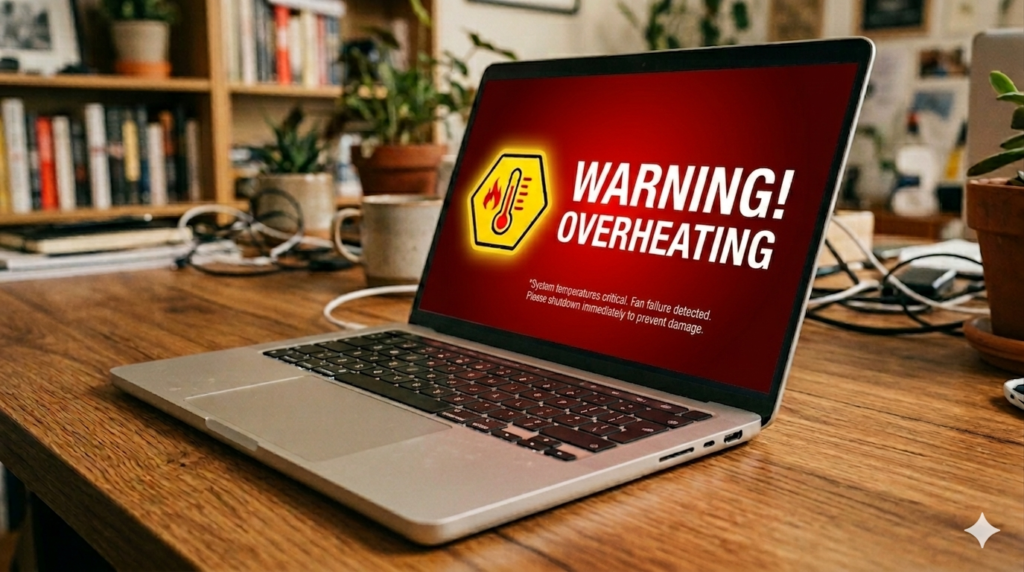
A laptop is a powerful tool, but it can sometimes get too hot during use. This problem is called laptop overheating. It happens when the system produces more heat than it can release.
Laptop overheating is very common. Many users face it in daily life, even with normal tasks. It is not always a serious fault, but it should not be ignored.
You can quickly notice the signs. The fan starts making more noise. The laptop body feels hot to touch. Programs start running slowly. In some cases, the laptop may even shut down on its own.
Have you ever felt your laptop getting too hot while using it?
Why Laptop Overheating Happens
Laptop overheating happens when heat builds up inside the system and the cooling system cannot remove it fast enough. Every laptop produces heat during use. But when cooling is weak or blocked, the temperature rises.
Dust in fans
Dust is one of the most common reasons for overheating. It slowly enters the laptop through air vents and settles inside the fan and heat sink. This blocks smooth air flow and reduces cooling power. The fan starts working harder but still cannot remove heat properly.
Key Points:
- Dust blocks air movement inside laptop
- Fan speed increases but cooling decreases
- Heat gets trapped inside system
- Can cause loud fan noise
Example:
A student uses a laptop daily in a dusty room. After some months, the laptop starts heating even during simple tasks like browsing.
Poor ventilation
Laptop needs free space around its vents to release hot air. When air vents are blocked, heat cannot escape. This makes the laptop temperature rise quickly, even during light use.
Key Points:
- Air vents must stay open
- Soft surfaces block airflow
- Heat gets stuck inside laptop
- Cooling system becomes less effective
Example:
A laptop placed on a pillow or bed heats up faster than one placed on a hard table.
Heavy usage
When you run heavy tasks, the laptop works harder. This increases CPU and GPU activity, which produces more heat. If many apps run together, the system becomes overloaded and temperature rises.
Key Points:
- Gaming increases heat quickly
- Video editing uses high power
- Too many apps increase load
- System struggles to manage heat
Example:
A user plays a high-graphics game while also keeping multiple browser tabs open. The laptop becomes hot within minutes.
Old thermal paste
Thermal paste is a heat transfer material between the processor and cooling system. It helps move heat away from the CPU. Over time, it dries and loses its ability to transfer heat properly.
Key Points:
- Connects CPU and cooling system
- Helps transfer heat efficiently
- Dries out with time
- Reduces cooling performance
Example:
An old laptop that was working fine before now overheats even during normal tasks because the thermal paste is no longer effective.
Easy Ways to Fix Laptop Overheating
Laptop overheating is common, but you can fix it with simple steps. Most problems come from dust, bad airflow, or heavy usage. Small actions can quickly lower the temperature and improve performance.
Clean the laptop fan
Dust is one of the biggest causes of overheating. It blocks airflow and stops the fan from working properly. When the fan cannot move air, heat stays inside the laptop. Cleaning helps restore normal cooling. Regular cleaning keeps the system stable and cool.
Key Points:
- Dust blocks air flow
- Fan cooling becomes weak
- Cleaning improves performance
- Regular care prevents overheating
Example:
A student laptop was heating during online classes. After cleaning the fan, the temperature dropped and performance improved.
Improve airflow
Airflow is very important for cooling. A laptop needs open space to release hot air. If vents are blocked, heat builds up quickly. Always use your laptop on a hard, flat surface. Avoid using it on beds or pillows. Good airflow helps heat escape easily and keeps the system safe.
Key Points:
- Open vents improve cooling
- Flat surface is best
- Soft surfaces trap heat
- Air movement reduces temperature
Example:
A laptop used on a bed overheated, but after switching to a desk, it stayed much cooler.
Close extra apps
Every open app uses system power. Too many apps force the processor to work harder, which creates more heat. Closing unused apps reduces pressure on the system. It also helps your laptop run faster and cooler.
Key Points:
- Fewer apps reduce heat
- Background apps increase load
- Less load improves cooling
- Better performance overall
Example:
A laptop running many tabs became hot, but after closing extra apps, it cooled down quickly.
Use a cooling pad
A cooling pad is an external device with fans. It gives extra airflow under the laptop and helps reduce heat. It is very useful for gaming, editing, or long working hours. It is easy to use and improves cooling without opening the laptop.
Key Points:
- Extra cooling support
- Helps during heavy work
- Improves airflow from bottom
- Simple plug-and-use tool
Example:
A gamer used a cooling pad, and the laptop stayed stable during long sessions without overheating.
Update software
Outdated software can cause system slowdowns and extra heat. Updates fix bugs and improve how the system runs. When the system runs smoothly, it produces less heat. Keeping drivers and Windows updated helps maintain better performance.
Key Points:
- Fix system bugs
- Improve performance
- Reduce background load
- Keep system stable
Example:
After updating Windows, a laptop stopped heating during normal browsing.
Replace thermal paste (advanced)
Thermal paste helps move heat from the processor to the cooling system. Over time, it dries out and stops working properly. This causes more heat inside the laptop. Replacing it improves cooling, but it is a technical task and should be done by an expert.
Key Points:
- Transfers heat from CPU
- Becomes weak over time
- Causes long-term overheating
- Best done by technician
Example:
An old laptop that used to overheat daily became much cooler after thermal paste replacement.
Simple Prevention Tips
- Clean your laptop every few months to remove dust
- Avoid using your laptop on bed or sofa
- Do not block air vents while using it
- Take breaks during heavy use like gaming or editing
- Keep room temperature normal and well-ventilated
Real-Life Examples
Example 1:
A student uses a laptop on the bed while studying or watching videos. The soft surface blocks airflow, so the laptop starts overheating quickly. After some time, the system becomes slow and the fan runs loudly.
Example 2:
A gamer plays high-graphics games for many hours. The fan becomes loud, and the laptop gets very hot because the system is under heavy load. In some cases, the game may also lag or freeze due to heat.
Example 3:
An office user opens many browser tabs and apps at the same time. The laptop slows down, and heat increases due to extra system pressure. Switching between tasks also becomes difficult.
Conclusion
Laptop overheating is a common problem, but it is not difficult to fix. Most of the time, it happens because of dust, poor airflow, or heavy usage. With simple cleaning and better usage habits, you can reduce heat and improve laptop performance. Small changes in daily use can also protect your laptop for a long time and keep it running smoothly.
Now think about your own laptop. Which fix will you try first?
FAQS
Is laptop overheating dangerous?
Yes, it can damage internal parts if you ignore it for a long time. It can also slow down performance and reduce laptop life.
Can I fix overheating without opening the laptop?
Yes, you can fix it by cleaning the surface, closing extra apps, improving airflow, and using a cooling pad.
Why does my laptop overheat even when idle?
This usually happens because of background apps, dust inside the fan, or system updates running in the background.
How often should I clean my laptop?
Cleaning every 3 to 6 months is good for normal use. If you use it in a dusty place, clean it more often.
Does updating Windows help cooling?
Yes, sometimes updates fix system bugs and reduce extra load, which helps lower temperature.
Can games cause laptop overheating?
Yes, heavy games use more CPU and GPU power, which creates more heat in the laptop.
Will a cooling pad fully fix overheating?
No, it helps reduce heat but does not fully fix internal problems like dust or old thermal paste.
Can overheating slow down my laptop?
Yes, when the laptop gets hot, it reduces speed automatically to protect hardware, which causes lag.