Is your laptop fan making loud noises all the time?
A noisy fan can make gaming, studying, watching videos, or office work very frustrating. Sometimes the fan becomes so loud that it feels like the laptop is struggling to breathe.
In most cases, loud fan noise happens because of overheating, dust buildup, blocked airflow, or too many apps running in the background. The fan spins faster to cool the system, which creates more noise.
The good news is that most laptop fan problems are easy to fix. You do not need advanced skills or expensive tools. In this guide, you will learn simple and effective ways to reduce fan noise, improve cooling, and keep your laptop running smoothly.
Why Laptop Fan Becomes Loud
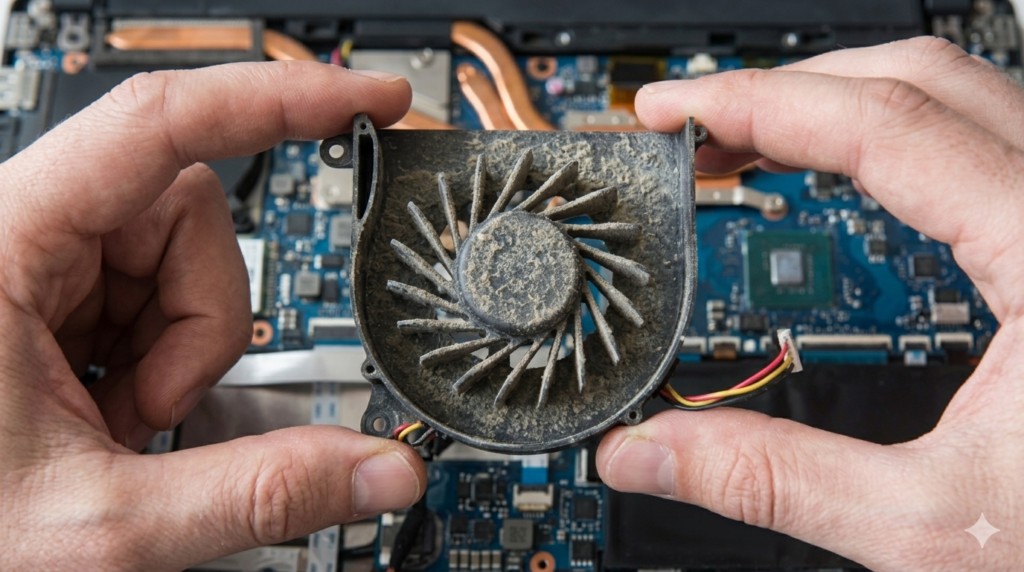
Dust Build-Up
- Dust blocks the air vents.
- Hot air cannot escape properly.
- The fan spins faster to cool the laptop.
- This creates loud fan noise.
High CPU Usage
- Too many apps run at the same time.
- Games and editing software use more CPU power.
- Heavy system load increases heat.
- The fan works harder to reduce temperature.
Poor Airflow
- Using the laptop on a bed or sofa blocks vents.
- Air cannot move freely inside the laptop.
- Heat builds up quickly.
- The fan becomes louder to improve cooling.
Background Viruses or Malware
- Malware runs hidden programs in the background.
- These programs use CPU and memory.
- The laptop becomes hot and slow.
- Fan speed increases because of extra heat.
Example
- A laptop with many Chrome tabs open may become slow and noisy.
- More tabs use more RAM and CPU power.
- This makes the fan run faster than normal.
How to Fix Loud Laptop Fan (Main Solutions)
Clean the Laptop Fan
Dust buildup is one of the main reasons for loud laptop fan noise. Dust blocks the air vents and stops hot air from leaving properly. This forces the fan to spin faster to cool the system.
Cleaning the vents and fan area can improve airflow and reduce noise. You can use compressed air or a soft brush for safe cleaning.
Key Points
- Remove dust from vents and fan area.
- Use compressed air carefully.
- Clean the laptop every 3–6 months.
- Better airflow reduces fan speed.
Example
A laptop used in a dusty room may become noisy because dust blocks the cooling vents.
Close Unnecessary Apps
Too many apps running together increase CPU usage and heat. Background programs also use system resources without notice.
Open Task Manager and close apps you do not need. This helps lower temperature and reduces fan noise.
Key Points
- Close unused apps.
- Check CPU usage in Task Manager.
- Avoid too many browser tabs.
- Reduce multitasking.
Example
Chrome with many open tabs can make the laptop fan louder than normal.
Use Laptop on Hard Surface
Using a laptop on a bed or cushion blocks the air vents underneath. This traps heat inside the system and makes the fan work harder. Always use your laptop on a flat surface like a table for proper airflow.
Key Points
- Avoid beds and cushions.
- Keep air vents open.
- Use a flat surface.
- Improve cooling airflow.
Example
A laptop on a pillow may overheat quickly because hot air cannot escape properly.
Scan for Viruses
Viruses and malware can secretly use CPU power in the background. This increases heat and fan noise even during simple tasks. Running a full antivirus scan helps remove harmful programs and improves performance.
Key Points
- Use trusted antivirus software.
- Run regular system scans.
- Remove suspicious programs.
- Keep antivirus updated.
Example
A malware-infected laptop may stay hot and noisy even when idle.
Change Power Settings
High Performance mode increases laptop speed but also creates more heat. Switching to Balanced mode helps reduce CPU usage and lowers fan speed during normal tasks.
Key Points
- Open Power Settings.
- Select Balanced mode.
- Reduce extra heat.
- Improve battery life.
Example
Many users notice quieter fan noise after changing power mode.
Update System and Drivers
Outdated Windows versions and drivers can cause heating problems. Updating the system improves performance and helps the laptop manage cooling better.
Key Points
- Install Windows updates.
- Update graphics drivers.
- Improve system stability.
- Fix software-related heat issues.
Example
Old graphics drivers may increase heat during gaming or video playback.
Use Cooling Pad
A cooling pad improves airflow under the laptop and helps reduce temperature during heavy use. It is useful for gaming, editing, or long work sessions.
Key Points
- Improves airflow.
- Helps reduce overheating.
- Useful for gaming laptops.
- Can lower fan noise.
Example
Many gamers use cooling pads to keep their laptops cooler during long sessions.
Check for Hardware Issue
If the fan still makes loud or strange noises, the hardware may be damaged. Grinding sounds, vibration, or constant loud spinning are common signs of a faulty fan.
Key Points
- Listen for strange sounds.
- Check for vibration.
- Old fans may wear out.
- Replace damaged fan if needed.
Example
A worn-out laptop fan may stay noisy even after cleaning the system.
Extra Tips to Reduce Fan Noise
Reduce Multitasking
- Don’t run too many apps at the same time.
- Close apps you are not using.
- This lowers CPU load and reduces heat.
Keep Room Cool
- A hot room makes the laptop heat up faster.
- Use your laptop in a cool, well-ventilated place.
- Lower temperature helps the fan stay quiet.
Restart Laptop Often
- Restart clears temporary files and background tasks.
- It refreshes system performance.
- This can reduce unnecessary fan activity.
Conclusion
A loud laptop fan usually means there is heat buildup or dust inside the system. In most cases, simple fixes like cleaning, closing extra apps, and improving airflow can solve the problem quickly. You do not always need technical help to fix it.
The best way to avoid fan noise in the future is to keep your laptop clean, cool, and well maintained. Regular care helps your laptop run smoothly and last longer.
Is your laptop fan making noise right now? Try these simple steps and see how much difference they make.
FAQs
Will updating Windows help reduce fan noise?
Yes. Updates can fix bugs and improve system performance, which may reduce overheating and fan noise.
Does using a laptop on bed increase fan noise?
Yes. Soft surfaces block air vents and trap heat, making the fan work harder.
Can viruses cause loud fan noise?
Yes. Some viruses run in the background and increase CPU usage, which makes the laptop hotter and louder.
How often should I clean my laptop fan?
It is best to clean it every 3 to 6 months, depending on dust and usage.
Does gaming always make the fan loud?
Yes. Games use more CPU and GPU power, which creates heat and makes the fan run faster.
Does gaming always make the fan loud?
Yes. Games use more CPU and GPU power, which creates heat and makes the fan run faster.
Can I fix it without opening my laptop?
Yes. You can fix many issues by cleaning software, closing apps, and improving airflow without opening the device.
Is loud fan noise dangerous?
Not right away, but long-term overheating can damage internal parts like the CPU and battery.
Why is my laptop fan suddenly so loud?
Usually, it happens because your laptop is overheating or too many apps are running at the same time. The fan speeds up to cool the system.