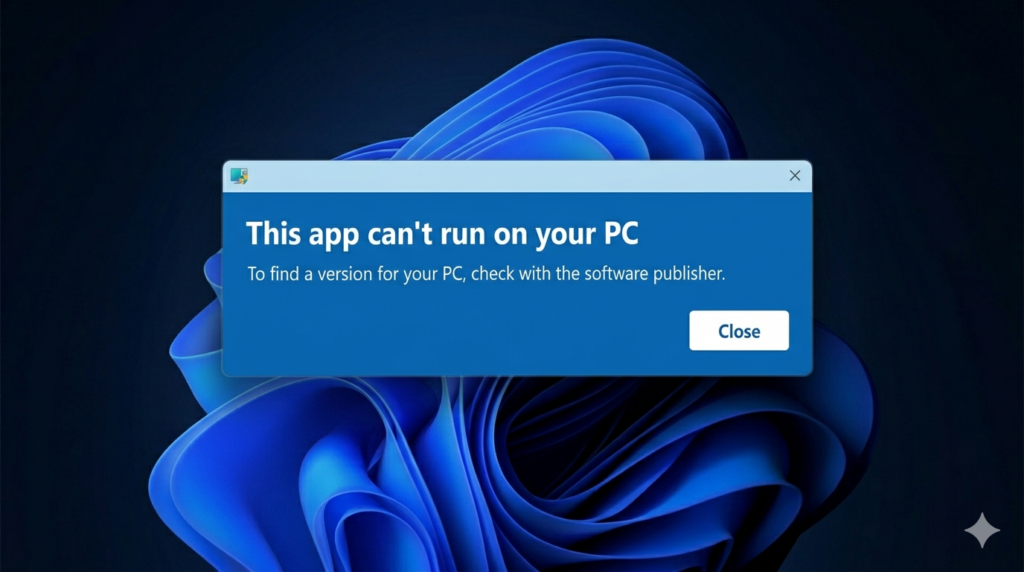
You open an app. You expect it to start. But instead, you see the message: “This app can’t run on your PC.” Nothing happens after that. It feels confusing and annoying at the same time.
This issue appears on many Windows computers. It stops apps from opening and blocks normal work or gaming. The good news is simple. Most cases do not need expert help.
In this blog, you will learn easy fixes you can try at home. These steps work for beginners and do not need advanced skills.
Have you ever faced this error while opening an app on your PC?
What This Error Means
This error simply means Windows does not allow the app to open on your computer. Your system tries to run the app, but something stops it.
Windows blocks it to protect your PC or because the app does not match your system. That is why nothing happens when you click it.
Common Reasons
- Wrong system type (32-bit vs 64-bit)
- App is not compatible with your Windows version
- Windows Security is blocking the app
Real-Life Example
You download a game or software from the internet. You try to open it, but nothing starts. Then Windows shows the message “This app can’t run on your PC.”
Quick Checks Before Fixing
Check Your PC Type
- Go to Settings → System → About
- Look for System type
- 32-bit supports older apps
- 64-bit supports modern apps and better performance
Restart Your PC
- Restart removes small system bugs
- It refreshes system memory
- Example: fixes temporary errors that block apps from opening
Check the App File
- Make sure the file is fully downloaded
- Broken files will not run properly
- Example: slow internet can stop full download and cause errors
Main Fixes for the Error
Run as Administrator
This fix helps when Windows blocks the app due to low permissions. Some apps need full access to system files to run properly. When you run it as administrator, Windows gives extra permission to the app. This often fixes the problem quickly.
Key Points
- Gives full permission to the app
- Helps apps that need system access
- Fixes permission-related blocks
Example
You try to open a setup file, but nothing happens. Then you run it as administrator, and the app opens normally.
Use Compatibility Mode
Old apps do not always work on new Windows versions. Compatibility mode helps the app run like it is on an older Windows system. This reduces errors caused by version differences. It is very useful for old software and games.
Key Points
- Makes old apps work on new Windows
- Runs app like older Windows version
- Fixes version mismatch issues
Example
Windows 7 software does not open on Windows 11. After using compatibility mode, it starts working.
Re-download the App
Sometimes the app file is not complete or gets damaged during download. A broken file cannot run, so Windows shows the error.
Downloading the file again often solves the issue. Always use trusted websites for safety.
Key Points
- Fixes broken or incomplete files
- Ensures clean installation file
- Always use official websites
Example
A game setup file stops downloading halfway. When you download it again, it opens without any error.
Check Windows Security
Windows Security can block apps it does not trust. This is a safety feature called SmartScreen. Sometimes it blocks safe apps by mistake. You need to check and allow the app if it is safe.
Key Points
- SmartScreen may block unknown apps
- Protects system from unsafe files
- You may need to allow trusted apps
Example
You download a new software, but Windows blocks it. After allowing it in security settings, it runs normally.
Update Windows
Old Windows versions may not support new apps. Updates fix system bugs and improve compatibility. Keeping Windows updated helps apps run smoothly. It also improves system performance.
Key Points
- Adds missing system support
- Fixes bugs and improves compatibility
- Keeps system updated for new apps
Example
A new app does not open on an old Windows version. After updating Windows, the app works fine.
Turn Off Antivirus (Temporary Test)
Sometimes antivirus software blocks apps by mistake. It may think the app is unsafe even when it is fine. Turning it off for a short time helps test the issue. Always turn it back on after checking.
Key Points
- Antivirus may block safe apps by mistake
- Helps identify blocking issue
- Always turn it back on after testing
Example
A game does not open even though it is safe. After turning off antivirus for a moment, it starts working.
Advanced Fixes (For Slightly Technical Users)
Use System File Checker (SFC Scan)
This tool checks your Windows system for broken or missing files. If it finds any problem, it repairs them automatically.
These system files are important because apps depend on them to run properly. This fix helps when Windows errors stop apps from opening.
Key Points
- Scans Windows system files
- Fixes broken or missing files
- Helps apps run without errors
Example
You run a command in Command Prompt, and Windows repairs damaged files. After that, the app starts working again.
Enable Developer Mode
Developer Mode allows Windows to install and run apps that are not from the Microsoft Store. It is mostly used by developers for testing apps.
You should use it only when needed, because normal users do not usually require it.
Key Points
- Allows installation of test or external apps
- Used for development and testing work
- Not needed for normal daily use
Example
You are testing a new app that is not from the store. After enabling Developer Mode, the app installs and opens correctly.
Common Mistakes Users Make
- Downloading apps from unsafe or unknown websites
- Ignoring system type (32-bit vs 64-bit) before installing apps
- Not updating Windows for long time
- Running the same corrupted file again and again
- Using cracked or modified software files
- Skipping antivirus or security warnings
- Installing apps without checking system requirements
Tips to Avoid This Error in Future
- Always download apps from official and trusted websites
- Keep Windows updated to latest version
- Check app requirements before installing anything
- Scan files with antivirus before opening
- Use correct version (32-bit or 64-bit) for your system
- Avoid unknown or pirated software
- Restart PC after installing new apps when needed
Conclusion
This error usually happens because of simple issues like wrong system type, blocked apps, or broken files. You can fix it easily by trying basic steps like running the app as administrator, checking compatibility mode, updating Windows, or re-downloading the file. Most users solve the problem without any advanced tools.
Try each fix step-by-step. Do not try everything at once. Start with the easiest solution and move forward only if needed.
Which fix worked for you?
FAQs Section
What is the fastest fix for this error?
Running the app as administrator or re-downloading the file often fixes it quickly.
Can antivirus cause this problem?
Yes, antivirus can block apps by mistake and stop them from opening.
Does the Windows version matter for this error?
Yes, older Windows versions may not support new apps, which causes this error.
Why do some apps open on other PCs but not mine?
Different systems have different Windows versions or system types like 32-bit and 64-bit.
Can I fix it without reinstalling Windows?
Yes, you can fix it without reinstalling Windows in most cases. Basic troubleshooting is enough.
Can I fix it without reinstalling Windows?
Yes, you can fix it without reinstalling Windows in most cases. Basic troubleshooting is enough.
Is it a virus problem?
Sometimes it can be a virus issue, but not always. Most cases are simple compatibility problems.
Can this error damage my PC?
No, this error does not harm your PC. It only stops the app from running.
Why does this error appear suddenly?
Windows blocks the app or the app does not match your system. It can also happen after updates or new installs.