Printer streaks can make your documents look messy and hard to read. You may notice black lines, faded marks, smudges, or uneven printing on the page. This problem is common in both inkjet and laser printers, but the good news is that it is usually easy to fix.
Printer streaks often happen because of dirty printer parts, low ink or toner, old cartridges, or dust inside the machine. If you ignore the issue, it can waste paper, increase ink usage, and even damage your printer over time.
Are your printed pages coming out with ugly lines or marks? If yes, this article will help you find the cause and fix the problem step by step in a simple way.
Common Types of Printer Streaks
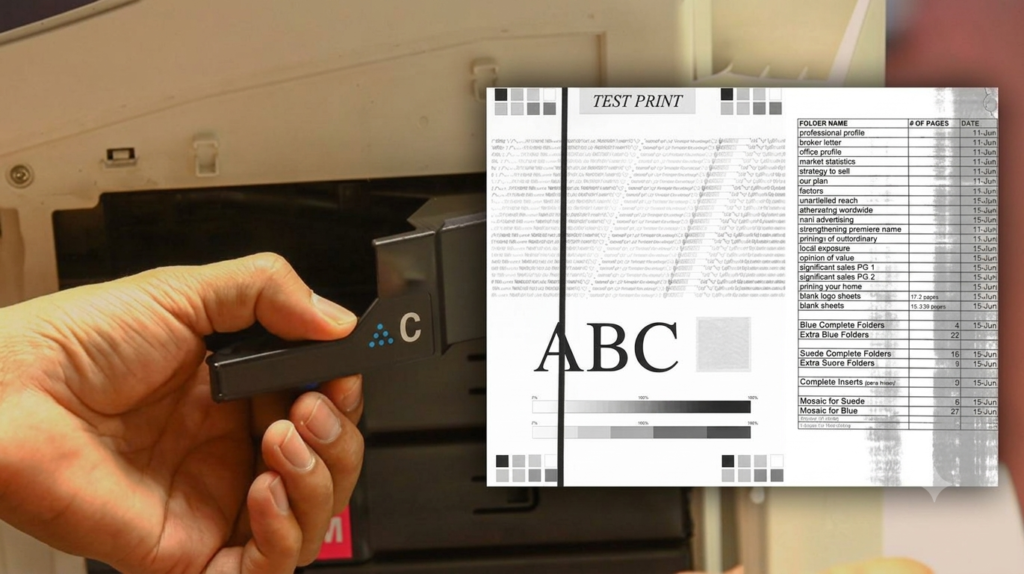
- Vertical Streaks
These lines usually appear from top to bottom on the page. Dirty rollers or clogged print heads are common causes. - Horizontal Streaks
These streaks move across the page from side to side. They often happen because of blocked or clogged nozzles. - Black Lines
Black streaks are mostly seen in laser printers. A damaged drum unit or toner problem may cause them. - Faded Streaks
Light or faded lines usually mean the printer is low on ink or toner. - Smudged Printing
Ink smudges can happen when printer parts are dirty or the paper is not dry properly. - Uneven Printing
Some areas may look darker while others look lighter. This can happen because of poor ink flow or dirty printer parts.
Quick Example
- If your school assignment prints with faded lines, low ink may be the reason.
- If black marks appear on every page, the drum unit may need cleaning or replacement.
Main Causes of Printer Streaks
Dirty Print Head
- The print head sprays ink on paper, and dried ink can block it, causing faded text and missing lines.
- Dust and ink build-up reduce print quality over time.
- Cleaning it from settings helps fix the issue.
Low Ink or Toner
- Low ink makes prints look light and faded.
- It affects color balance and sharpness.
- Replace cartridges when ink gets low.
Dirty Rollers
- Rollers move paper inside the printer.
- Dust and ink cause smudges and marks.
- Cleaning rollers improves paper flow.
Damaged Drum Unit
- Drum unit transfers toner in laser printers.
- Damage causes black streaks and repeated marks.
- Replacing it fixes print quality.
Poor Quality Paper
- Thin or damp paper causes streaks and blur.
- It does not absorb ink properly.
- Use dry, good-quality paper for better results.
How to Fix Printer Streaks Step by Step:
Step 1: Run Printer Cleaning Tool
The printer cleaning tool removes blocked ink from the print head. It clears dried ink that stops smooth printing. It fixes faded text and broken lines. It improves overall print quality. It helps keep the printer in good condition.
Steps
- Open printer settings
- Go to maintenance option
- Start cleaning cycle
- Print a test page
Helpful Tip
- Run cleaning only when needed to save ink
Step 2: Check Ink or Toner Levels
This step shows how much ink or toner is left in the printer. It helps you understand if low ink is causing streaks. It prevents weak or faded printing. It makes sure printing stays clear and sharp. It also helps avoid sudden print problems.
How to Check
- Check from printer screen
- Or check from computer settings
What to Do
- Replace empty or low cartridges
Example
- A printer with almost empty black ink may print gray streaks
Step 3: Clean the Print Head Manually
This removes dried ink stuck in the print head. It helps restore smooth ink flow. It fixes missing lines and faded prints. It improves print clarity. It makes the printer work like new again.
Items Needed
- Soft cloth
- Warm water
Cleaning Steps
- Turn off printer
- Remove cartridges
- Clean gently
- Let it dry fully
Tip
- Never touch printer parts with wet hands
Step 4: Clean Printer Rollers
This removes dust and ink from the rollers. It helps paper move smoothly inside the printer. It reduces smudges and marks on pages. It improves printing accuracy. It prevents paper feeding issues.
Cleaning Steps
- Open printer cover
- Find rollers
- Wipe softly with cloth
Step 5: Replace the Drum Unit
The drum unit transfers toner onto paper in laser printers. When damaged, it creates black streaks and repeated marks. Replacing it fixes print quality issues. It restores clean and sharp printing. It helps the printer perform better.
Signs of a Bad Drum
- Repeating black marks on pages
- Dirty prints on every page
Step 6: Update Printer Drivers
Updating drivers fixes software problems in the printer. It improves communication between computer and printer. It solves random printing errors and streaks. It boosts printer performance. It keeps the system updated and stable.
How to Fix
- Go to printer brand website
- Download latest driver
- Install and restart printer
Tips to Prevent Printer Streaks
- Print regularly to stop ink from drying
- Keep printer clean because dust causes many problems
- Use good quality paper for better print results
- Replace ink before it runs empty to avoid faded prints
- Store printer in a safe place away from heat and moisture
When to Get Professional Help
Signs You Need Repair
- Printer streaks stay even after cleaning and basic fixes
- Printer makes strange or unusual noises during printing
- Paper jams happen again and again without clear reason
- Print quality remains poor even after replacing ink or toner
Repair vs Replacement
- Some printer problems are too costly to repair
- Old printers may need frequent fixes and new parts
- In many cases, replacing the printer is more affordable than repair
Professional Advice
- If your printer is very old and repair costs are high, replacement is often the smarter and more practical choice
Common Mistakes to Avoid
- Using wet paper that causes smudges and streaks
- Cleaning printer parts too hard and damaging them
- Ignoring low ink or toner warning signs
- Using the wrong cartridge type for your printer model
Conclusion
Most printer streak problems are easy to fix with simple steps. Regular cleaning and basic maintenance can solve most printing issues and keep your printer working smoothly for a long time.
It is always better to check ink levels, clean printer parts, and use good quality paper before assuming a big problem. These small habits can prevent major printing issues and improve daily print results.
If you follow the steps in this guide, you can save time, money, and avoid unnecessary stress. Even old printers can give better results with proper care.A few minutes of cleaning and checking can save you money and improve print quality every day.
FAQS
Why does my printer print black streaks?
Usually because of dirty rollers, a damaged drum unit, or dust inside the printer.
These issues stop the printer from working smoothly and create dark lines on pages.
Can low ink cause streaks?
Yes, low ink or toner often causes faded or uneven streaks on pages.
It reduces print quality and makes text look light or incomplete.
How often should I clean my printer?
For normal use, cleaning every few months is enough to keep it working well.
Regular cleaning also helps prevent future printing problems.
Are printer streaks easy to fix?
Yes, most streak problems can be fixed with simple cleaning and basic checks.
You usually do not need professional repair for common issues.
Should I replace my printer if streaks continue?
Only replace it if cleaning and repairs do not solve the problem.
Old printers with repeated issues are often better to replace than repair.
Can cheap paper cause printing problems?
Yes, low-quality paper can cause smudges, streaks, and poor print results.
Good paper helps ink spread evenly and improves print clarity.
What is the main cause of printer streaks?
The main causes are dirty print heads, low ink, and dust inside the printer.
These factors block smooth ink flow and reduce print quality.
Can printer streaks damage documents?
Yes, streaks can make documents hard to read and look unprofessional.
Clean printing is important for clear and proper presentation.